
Writing Mapping Expressions
Mappings: Functions and Expressions · Updated June 9, 2025
Before You Get Started
Before you begin mapping data, make sure you have reviewed the following articles:
Writing Mapping Expressions
Mapping expressions can comprise many different types of data, functions, operators, and values. Mapping expressions are applied in order from top to bottom. For this reason, local variables are always pinned to the top of the Model Mappings box.
Hard-Coded Values
A hard-coded value is used when all records should have the same value in an output field
-
Alphanumeric text strings: can be specified by wrapping the desired value in double-quotes (i.e.,
") like this:"[string]" -
Null value: can be specified by typing
nullwithout surrounding it in quotes -
Boolean values: can be specified by typing
trueorfalse(case-insensitive) without surrounding the text in quotes -
Numbers: can be specified by typing the number without surrounding it in quotes (i.e.,
1, not"1") -
Empty object or array:
-
{}is an empty object -
[]is an empty array
-
Data Fields
Data fields from a source can be referenced by typing the field name into the mapping expression editor, prepended by the upstream object’s edge label name and a period (see Managing Model Inputs in the Mapping Canvas to learn more about edges on the mapping graph).
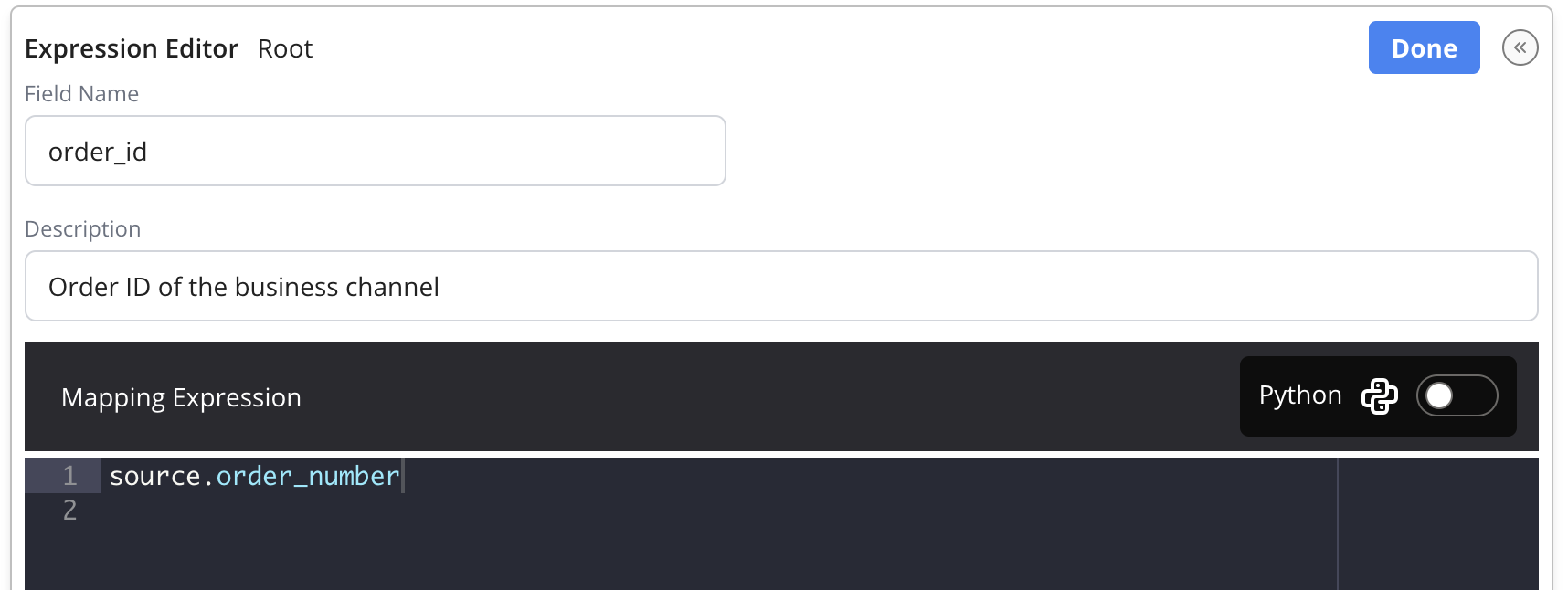
In the example below, the source field order_number is mapped to the model's order_id field:
Mapping Fields from Multiple Inputs
When a model configuration contains two or more inputs, a local variable called primary is automatically created by Reactor. To reference any primary input field in a mapping expression, simply enter "primary." then the field name.
Referencing Another Field in the Model Configuration
Because mapping expressions are evaluated in order from top to bottom, a mapped field can be referenced by entering "result." followed by the name of another field that is mapped above the field in the model configuration. In the example below, a field called node_ALLCAPS is mapped to the node field in the same configuration, then converted to all-capital letters using an Upper function:
Source Metafields
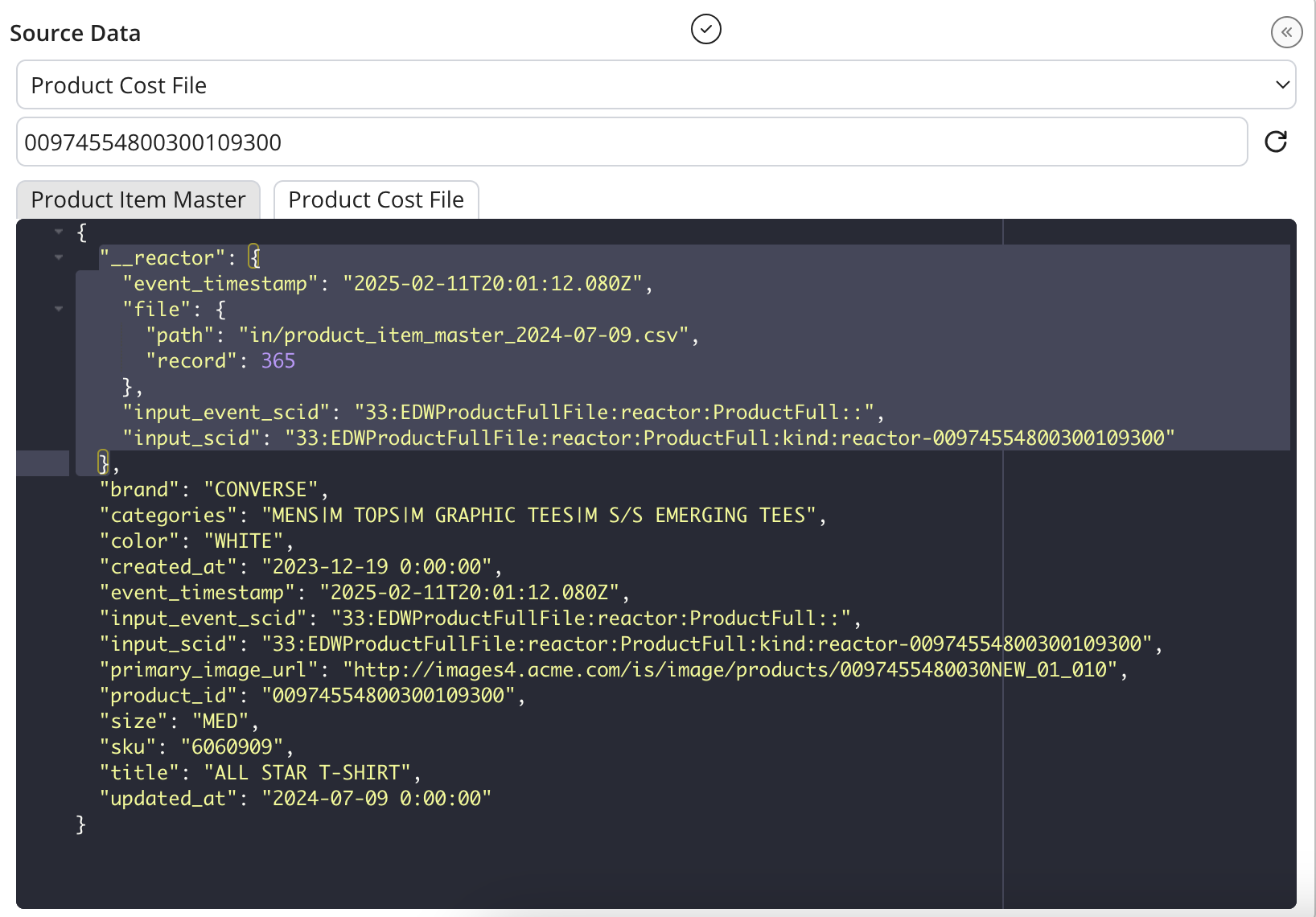
Additionally, Reactor adds an object called __reactor to all sources. This object contains the following metadata fields:
-
event_timestamp: Timestamp when the record was ingested to Reactor has_redactions: a boolean denoting whether personally identifiable information (PII) in this record has been redacted due to a customer data deltion request (See Requesting Removal of Consumer Data for more information on how Reactor handles customer data deletion requests)-
input_event_scid: A unique identifier of the source connector instance deployed in Reactor -
input_scid: The unique identifier assigned to each record in Reactor (this is typically mapped to the scid field in Reactor models). Input scids are formatted as a colon-delimited (:) string comprised of the following inputs:- Your organization's Reactor Tenant ID (e.g.
33) - The name (or node) of the source system (e.g.
Shopify) - The scope of the source connector; this is typically a brand name or business unit (e.g.
Acme Enterprises) - The endpoint or file name of the source (e.g.
order.update) - The data kind represented by the source (this is not currently in use by any Reactor source connector)
- The Unique identifier of the source, generated by Reactor according to the source’s Identity Setup:
-
-
Sources with a single Primary Identifier defined in the Identity Setup: This value will be the value of the unique identifier field
-
Sources with two or more Primary Identifiers defined in the Identity Setup: This value will be a hashed concatenation of all Primary Identifier fields
ℹ️ For more information on Identity Setup and Primary Identifiers, see Standardize Your Source Data
-
- Your organization's Reactor Tenant ID (e.g.
should_delete: a boolean denoting whether a record should be deleted from downstream systems due to a customer data deletion request (See Requesting Removal of Consumer Data for more information on how Reactor handles customer data deletion requests)
These fields can be referenced in mapping configurations that branch from a data source by prepending the field name with source.__reactor. (e.g. to map a field to the input_scid, type source.__reactor.input_scid in the expression editor).
Additionally, some Flatfile sources also contain an object called file in the __reactor object. This object contains the following metadata fields:
-
path: The GCS prefix from which the file was ingested and the name of the file (e.g.in/product_item_master_2024-07-09.csv) -
record: The row number of the record within the file from which it was ingested (e.g.464)
Operators
An Operator is a character used in mathematical and logical expressions. A full list of supported operators is below:
-
,: Separates two terms in a list, function, or pair -
||: Logical "or" -
&&: Logical "and" -
==and!=: Equality and inequality operators (respectively) -
<,>,<=,>=: Comparison operators -
+: Add -
-: Subtract -
%: Modulo -
^: Power (exponent) -
/: Divide -
*: Multiply -
!: Negate -
( ): Grouping
Mapping Functions
A mapping function is used when data from one or more input fields and/or hard-coded values is transformed into an output field.
-
Mapping functions may utilize hard-coded values, field mappings, and/or metadata mappings
-
When referencing a hard-coded value, field mapping, or metadata mapping in a mapping function, any of the relevant rules above apply
-
Multiple mapping functions can be grouped, nested, and used in conjunction with each other, with the inner-most functions and parameters applied first, moving outwards to the outer-most function and parameters
Below are some examples of mapping functions, a full list of mapping functions with supporting documentation can be found here: Function Library, Overview, & Glossary
-
To convert two string fields to numbers and calculate the difference of the resulting numbers, use the following expression:
null -
When mapping a
channelfield in a semantic model, if records from another sales channel are inserted to your Shopify store, you can use anIFfunction to determine the value of thechannelfield for a given record.In this example, Amazon.com marketplace orders are inserted to Shopify, and can be identified by the email field (Amazon does not share customers' actual email addresses; instead Amazon provides a masked email address formatted like
[string]@marketplace.amazon.com). Order records whose email value does not match the[string]@marketplace.amazon.comformat are not Amazon orders; in this case that means they are Shopify orders (because there are no other sales channels in this example).-
Using a
REGEXMATCHfunction nested within anIFfunction, the Sound_Order.channel semantic label can be mapped as:IF( ENDS_WITH( source.email, "@marketplace.amazon.com"), "Amazon", "Shopify) -
Records whose email ends in "@marketplace.amazon.com" format will output "Amazon" in the
channelfield -
All other records will output "Shopify" in the
channelfield
-
ℹ️ For a full list of mapping functions and supporting documentation, see Function Library, Overview, & Glossary.
Writing Mapping Expressions in Python
In addition to the mapping functions and expressions documented on this page, users can write mapping expressions in Python. You have that option if you are a Python ninja and would rather use Python for all mapping expressions. Additionally, Python expressions can be used for complex transformations not yet supported by Reactor's mapping functions.
When writing an expression, select the checkbox next to Python Mode above the Description box to evaluate the expression as a Python expression. In the example below, a standard Get function is used to select the source.Date field and is rewritten as a Python expression.
Validating Mapping Expressions
When writing mapping expressions, users can validate that the expression entered in the Expression Editor box outputs the desired results by comparing the source data in the Document Data box to the mapping results output in the Results box.
In the example below, the user is creating a field named title and mapping that field to the source field title.
Pay attention to the Results window while the user is typing the mapping expression: the field will appear, followed by this text block: // editing.
This denotes that the user is editing the mapping for that field. After the user finishes writing the mapping expression, the Results preview will refresh with the mapped value of the record surfaced in the Document Data box.
The user can then compare the value of the source field (title) to the output field (also title) to validate that the mapping written in the expression editor has the desired result.
You can validate the mapping expression against additional records by selecting the 🔄 icon in the Source Data panel.
Reactor will return a new record from the source data. Alternatively, you can input a source record’s globally unique identifier in the Unique ID text box in the Document Data box to retrieve that source record and evaluate the mapping configuration against that record.
Resolving Mapping Expression Errors With a Virtual Assistant
When a user writes a malformed mapping expression, Reactor will notify the user of the error by displaying a yellow ⚠️ (warning) icon next to the Errors header in the Results box. Clicking on the Errors header will display any mapping errors contained in the mapping configuration, enabling the user to find and resolve those errors before deploying changes.
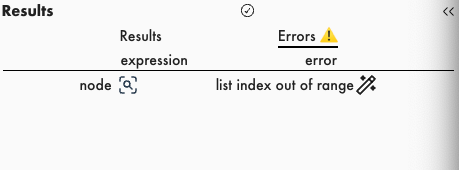
Selecting the 🔍 icon next to the field name in the expression column will direct the user to the mapping expression that returned the error.
Selecting the 🪄 icon next to an error opens a chat window, where the user can request mapping help from a virtual assistant. If the virtual assistant does not give a satisfactory answer, the user can refine the request and also accept a proposed mapping change from the virtual assistant.
In the example below, the user is attempting to map the node field by splitting the source metafield input_event_scid and selecting the portion of that field that represents the source system (the second string when separating by the ":" character). However, the user has entered the wrong index after a split function causing an error: