
Building, Updating, and Testing Mappings in Sandbox Mode
Mappings · Updated May 29, 2025
Introduction
This article provides a comprehensive guide to utilizing the Mapping Sandbox feature within the Reactor platform. The Sandbox environment allows users to test and refine data mappings and configurations without impacting live production data, ensuring data integrity and successful ETL operations.
Prerequisites
Before you begin mapping data, ensure that you have completed the following:
- Connect Data Sources: Establish connections to all data sources required for your mapping activities. For detailed instructions, refer to the "Connect to a Data Source" documentation.
- Standardize Source Data: Standardize the data from your connected data sources to ensure consistency and quality. For detailed instructions, refer to the "Standardize Your Source Data" documentation.
- (Optional) Configure Source Links: If you need to combine data from multiple sources, configure Source Links to define how the data should be joined. For detailed instructions, refer to the "Source Links" documentation.
Understanding Sandbox Mode vs. Production Mode
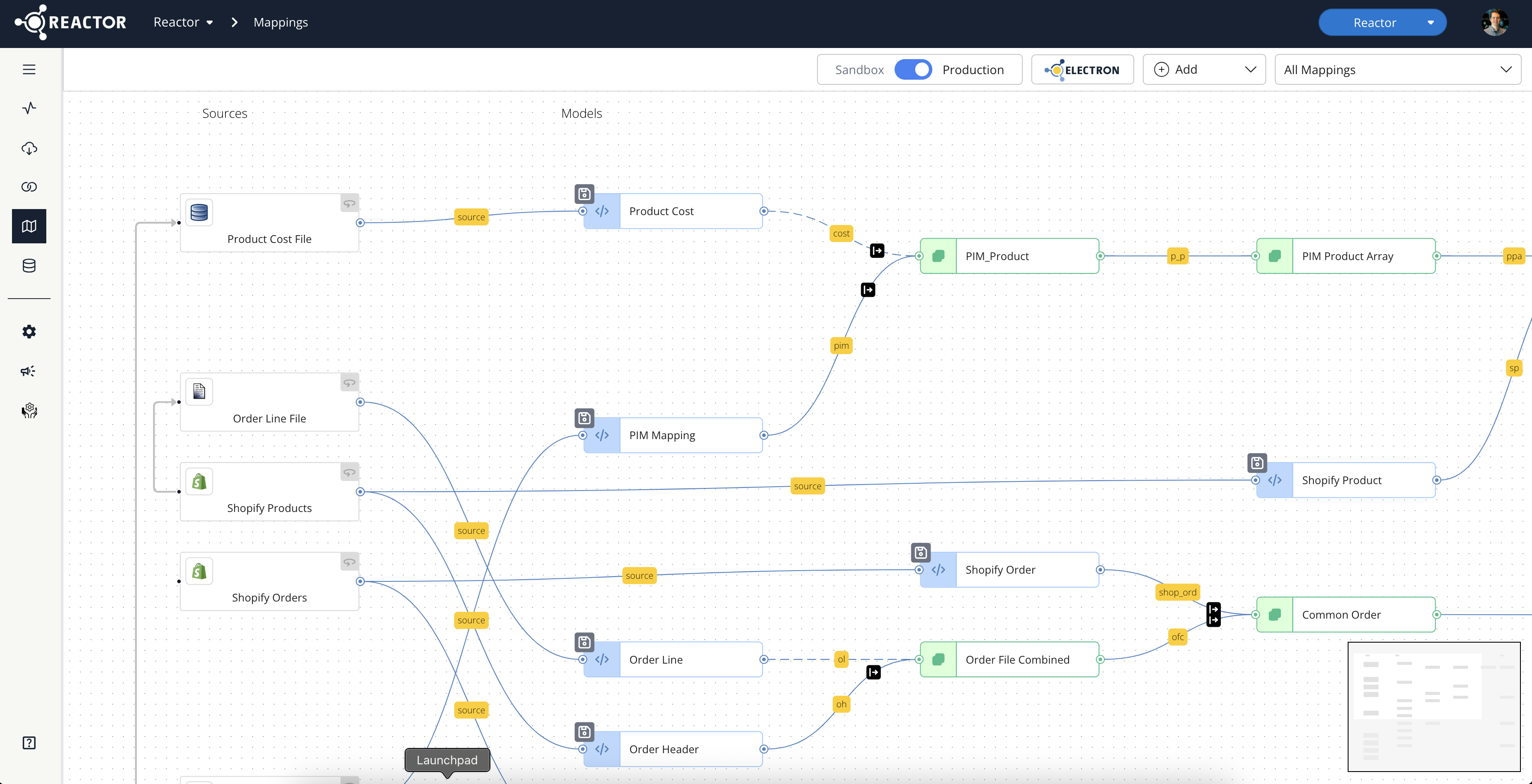
Production Mode Overview
This is the live, operational environment of Reactor where ETL processes execute against active data. Changes made directly in Production mode immediately affect data processing and outputs. In Production mode:
- The background of the mapping canvas is white
- The Sandbox/Production toggle on the top ribbon is set to "Production"
Sandbox Mode Overview
Sandbox is a safe, isolated staging environment within Reactor for developing and testing mapping configurations. Actions and changes within Sandbox mode do not impact live production data or ongoing ETL workflows. Its purpose is to experiment, troubleshoot, and validate new or modified data transformations.
In Sandbox mode:
- The background of the mapping canvas is light yellow
- The Sandbox/Production toggle on the top ribbon is set to "Sandbox"
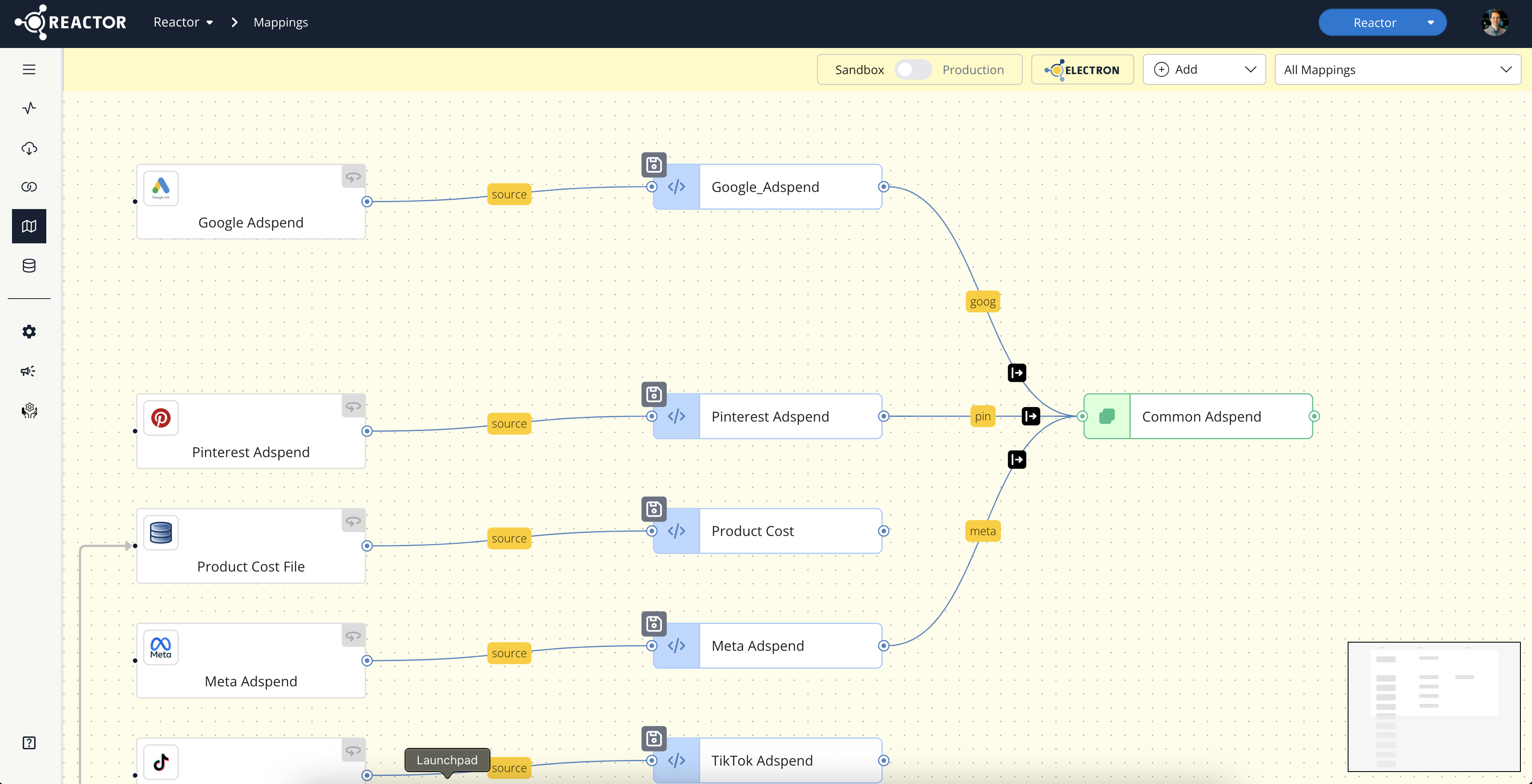
In Sandbox, the UI pulls from live data sources, but only on mapper replay (streaming data is not supported in Sandbox). You can configure targets for Sandbox on the Destinations page, which cannot be deployed in Production (and Production outputs cannot be deployed in Sandbox).
Identifying and Toggling Between Sandbox and Production
To switch between Sandbox and Production mode, locate the Sandbox/Production toggle switch on the top ribbon above the mapping canvas. Click the toggle to switch between environments.
Managing Configurations in Sandbox
Loading a Live Configuration
You can load an existing production configuration into the Sandbox to modify an active mapping or troubleshoot a production issue without affecting live data. To load an existing model configuration from Production to the Sandbox environment:
- Switch the mapping canvas to Production mode (if you are not in Production mode already)
- Open the model you wish to load to Sandbox
- Select the Save button in the model configuration
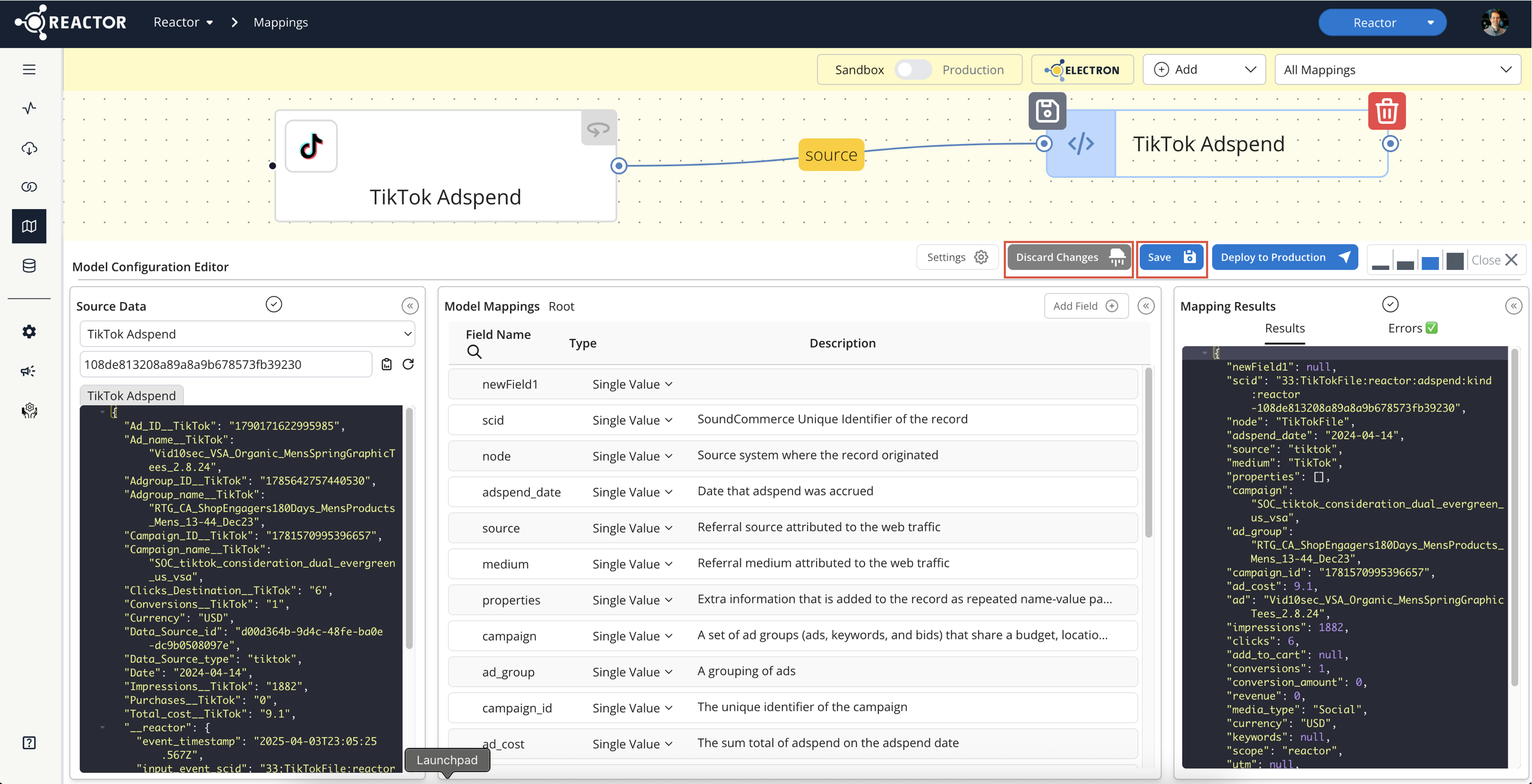
While editing a model configuration in Sandbox mode, select the Save button to save your work within the Sandbox. This action does not affect any related model(s) in Production.
To discard unsaved changes, select the Discard Changes button.
Deleting Draft Configurations
You can delete saved model configurations from the Sandbox mapping canvas, similar to how deployed Production configurations are managed in Production. Simply select the model you wish to delete from sandbox, then select the red trash can icon on the model's tile to delete.
Validating Mappings with Sandbox Outputs and Mapper Replay
In Sandbox, you can view the results and outputs of a mapping configuration run. You can use the tooling in the UI to validate the mappings of individual source records, comparing source to output, just as you can in Production.
Utilize Mapper Replay to step through the transformation process and inspect intermediate data states. Mapper Replay can be run for just sandbox/saved pipelines. We recommend replaying a significant sample of records to a sandbox table for further validation and analysis before promoting to Production.
Promoting a Saved Configuration to Production
Once a Sandbox configuration has been thoroughly tested and validated, you can promote it to the Production environment by selecting the Deploy to Production button in the model configuration editor. When you deploy a model from Sandbox, the saved model is deployed to Production (replacing the existing Production model if it already exists in Production) and then deleted from Sandbox since it is no longer needed.