
Retransforming Data and Mapper Replay
Mappings · Updated August 26, 2025
What is a Mapper Replay?
Mapper Replay is a process by which mapping configurations are reapplied to source data and the retransformed data is exported to the connected data destination. It allows Reactor users to retransform all source data collected and indexed by Reactor according to the latest version of a mapping configuration, future-proofing their data.
When to Execute a Mapper Replay
A Mapper Replay should be executed whenever a new mapping configuration is deployed so that the mappings deployed will be applied retroactively to data collected and mapped before the new configuration was deployed. There are many reasons why a mapping configuration could be updated, including:
- Updates to support new data use cases
- Updates to resolve mapping errors reported in Reactor
- Updates to differentiate data from different sources that lands in the same destination
How to Execute a Mapper Replay
- In Reactor, navigate to the Mappings page using the Mappings link on the left sidebar.
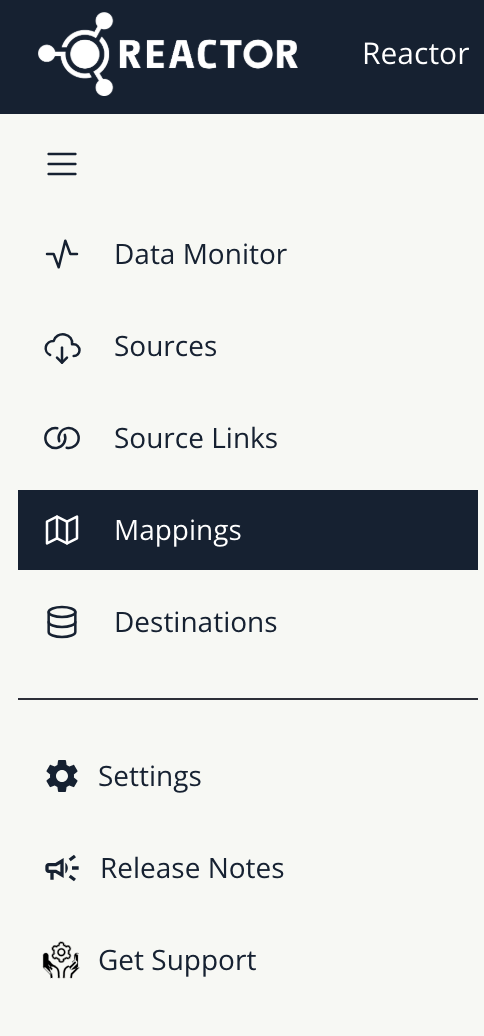
ℹ️ If you do not see a Mappings link on the sidebar, ensure the Admin has given you permissions.
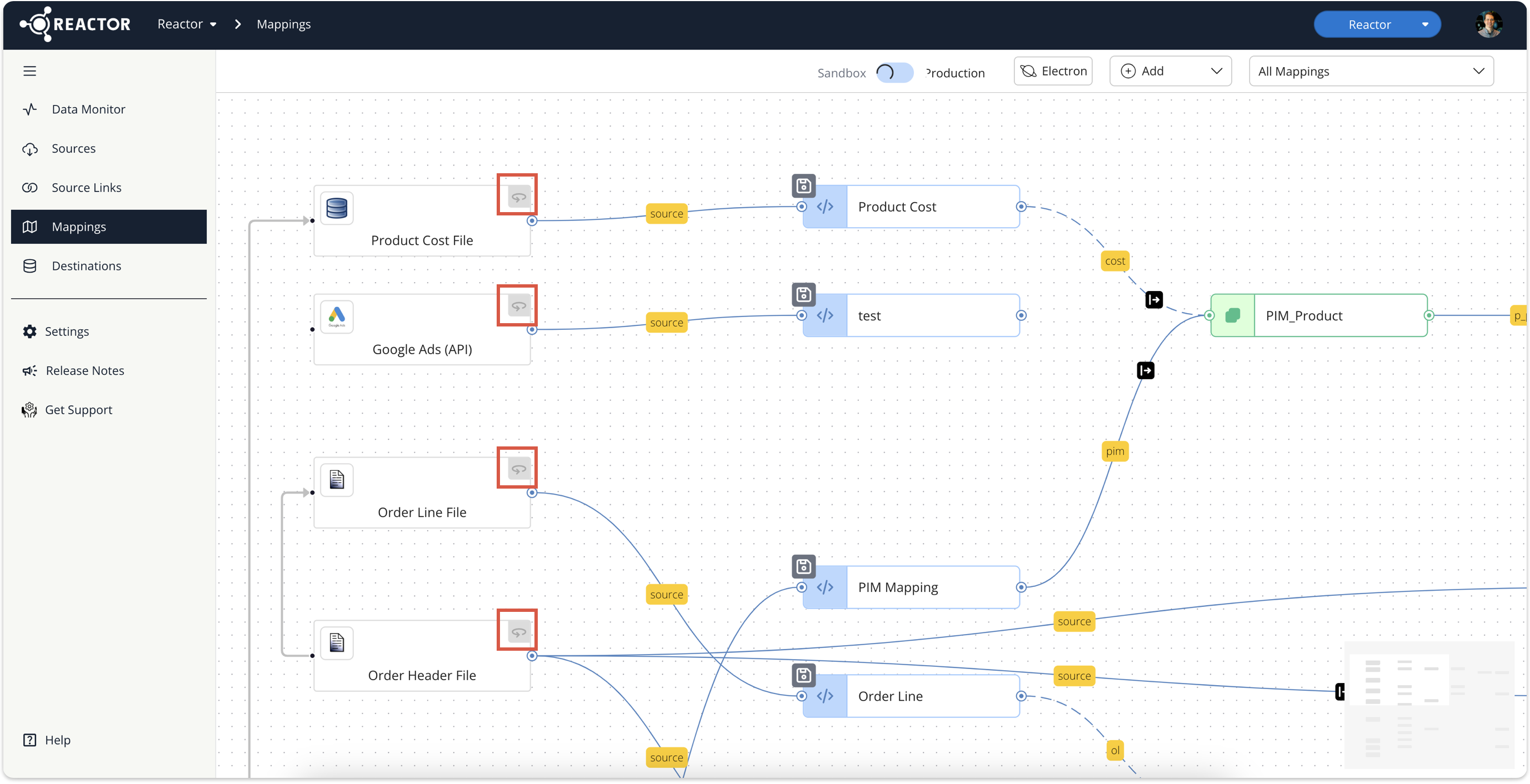
- Find the tile on the mapping graph for the data source whose data you would like to retransform
ℹ️ If you need help finding the source you are looking for, use the search box at the top right of the mapping graph.
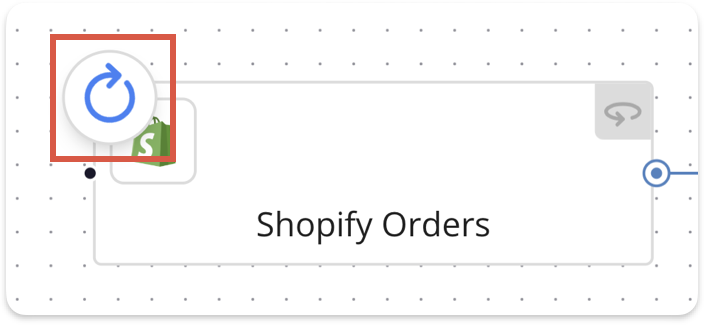
- Each source tile has a circular arrow icon in the top-right corner (see below, in the red square); select this icon to kick off a mapper replay for this source.
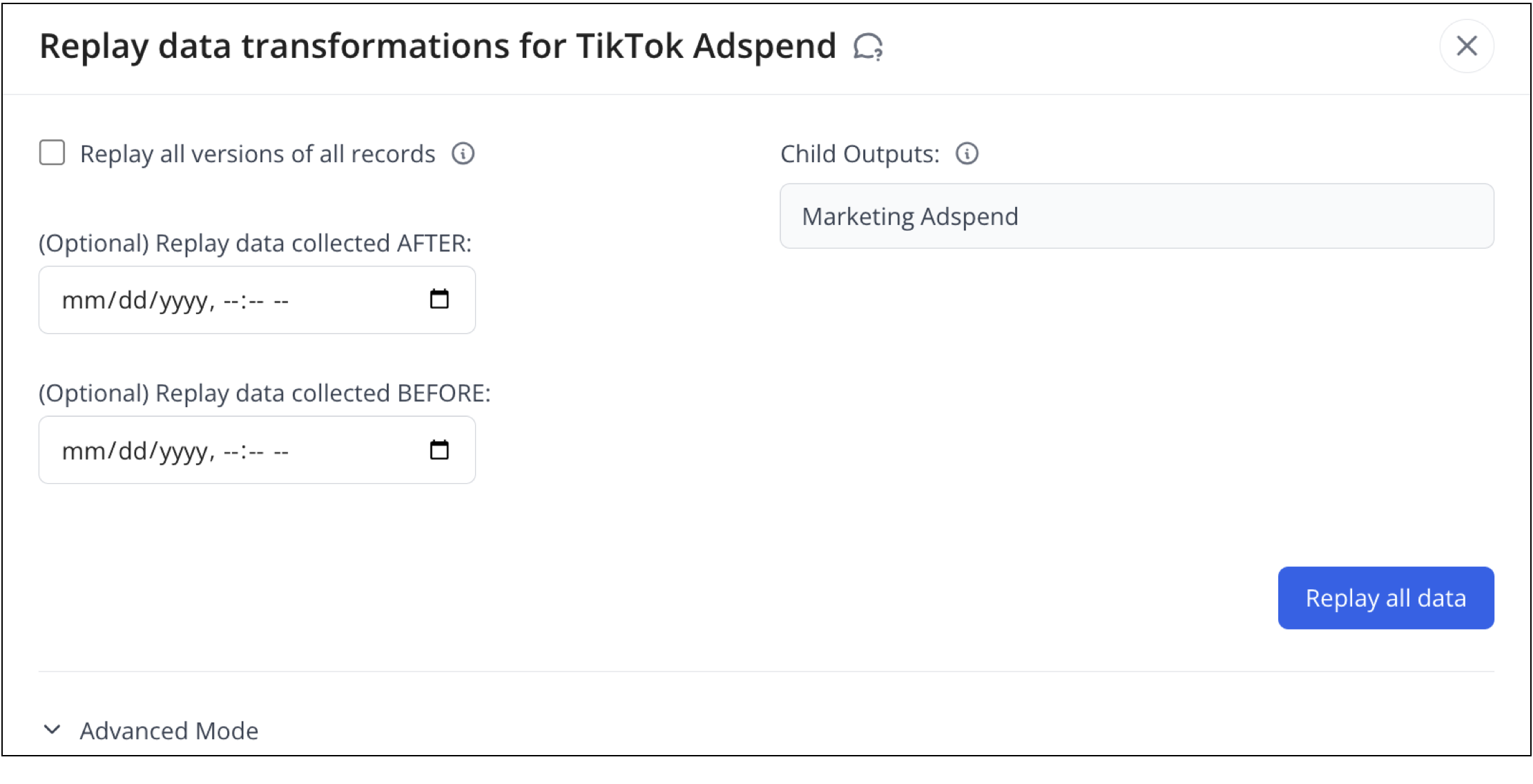
- A wizard will appear, in which you can configure the Mapper Replay job:
- If you want to replay all versions of all distinct source records collected by Reactor, select the checkbox next to "Replay all versions of all records" (otherwise Reactor will only replay the most recently collected version of each distinct source record).
- If you want to limit the replay to cover only records collected after a certain time, enter a date and time in the "Replay data collected AFTER:" box (or select the calendar icon to select a date and time on a calendar). If this box is empty, Reactor will replay all records going back to the beginning of data collection for the source.
- If you want to limit the replay to cover only records collected before a certain time, enter a date and time in the "Replay data collected BEFORE:" box (or select the calendar icon to select a date and time on a calendar). If this box is empty, Reactor will replay all records going up to the most recent record collected from the source.
-
Optional: To replay one or more specific records, select the Advanced Mode toggle at the bottom of the wizard, enter a comma-delimited list of the IDs you want to replay, then select the Remap button to kick off the replay for the specified records.
Read more a bout Advanced Mode in the section below: Use Advanced Mode to Replay a List of Specific Source Records
- Select the blue Replay button at the lower-right corner of the to begin the Mapper Replay job.
Use Advanced Mode to Replay a List of Specific Source Records
Mapper Replay Advanced Mode allows you to specify a list of IDs to replay, rather than replaying all records or records collected before or after a specific collection date. This is particularly useful for testing a mapping pipeline on a specific record before committing to a complete data source replay.
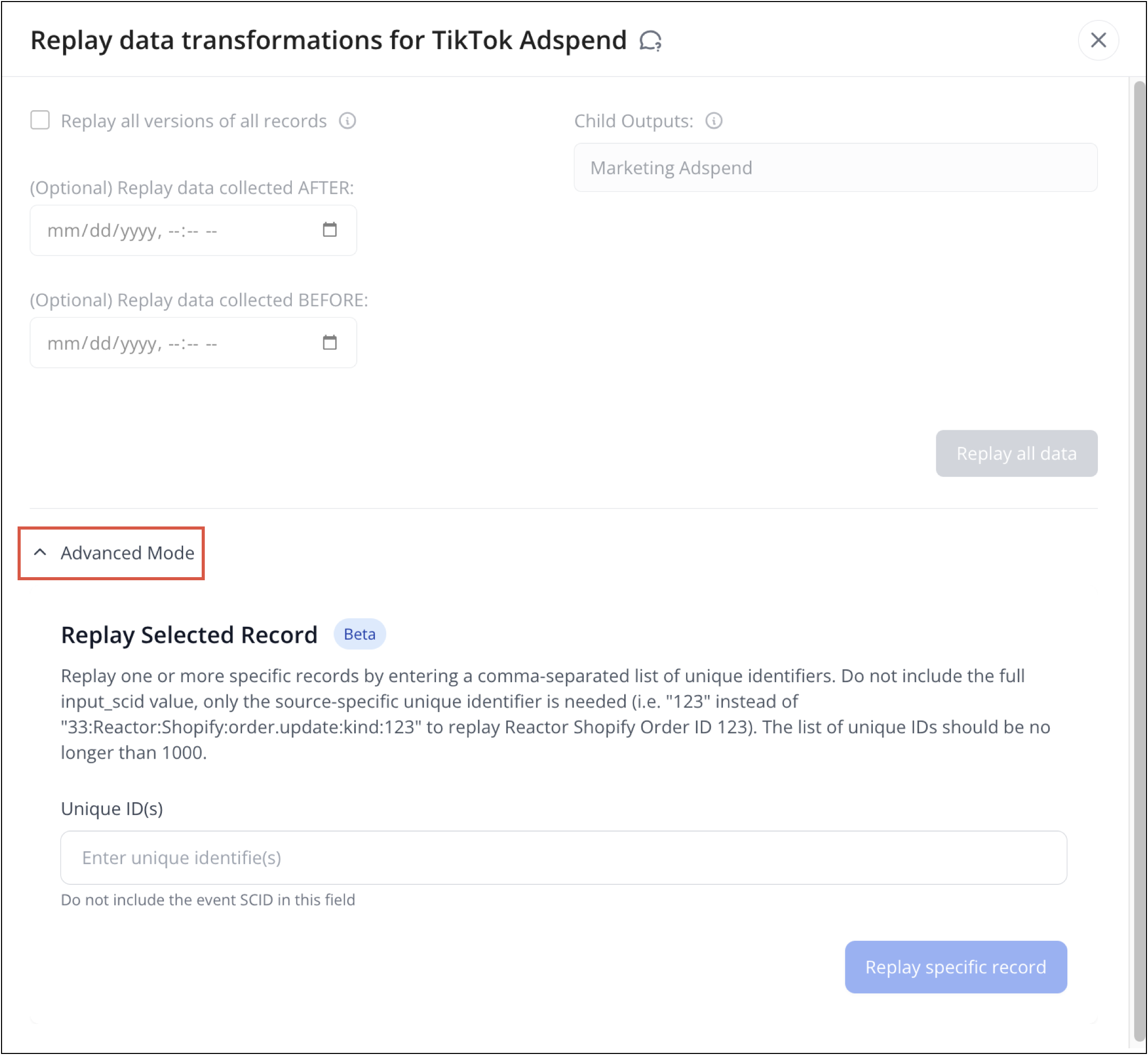
To use Advanced Mode, simply select the Advanced Mode toggle at the bottom of the wizard, enter a comma-delimited list of the IDs you want to replay, then select the Remap button to kick off the replay for the specified records.
Track Mapper Replay Progress
Once the replay has started, Reactor will surface a spinning circular icon on the source tile denoting the replay has begun:
Hover your mouse over the icon to view a real-time snapshot of replay progress:
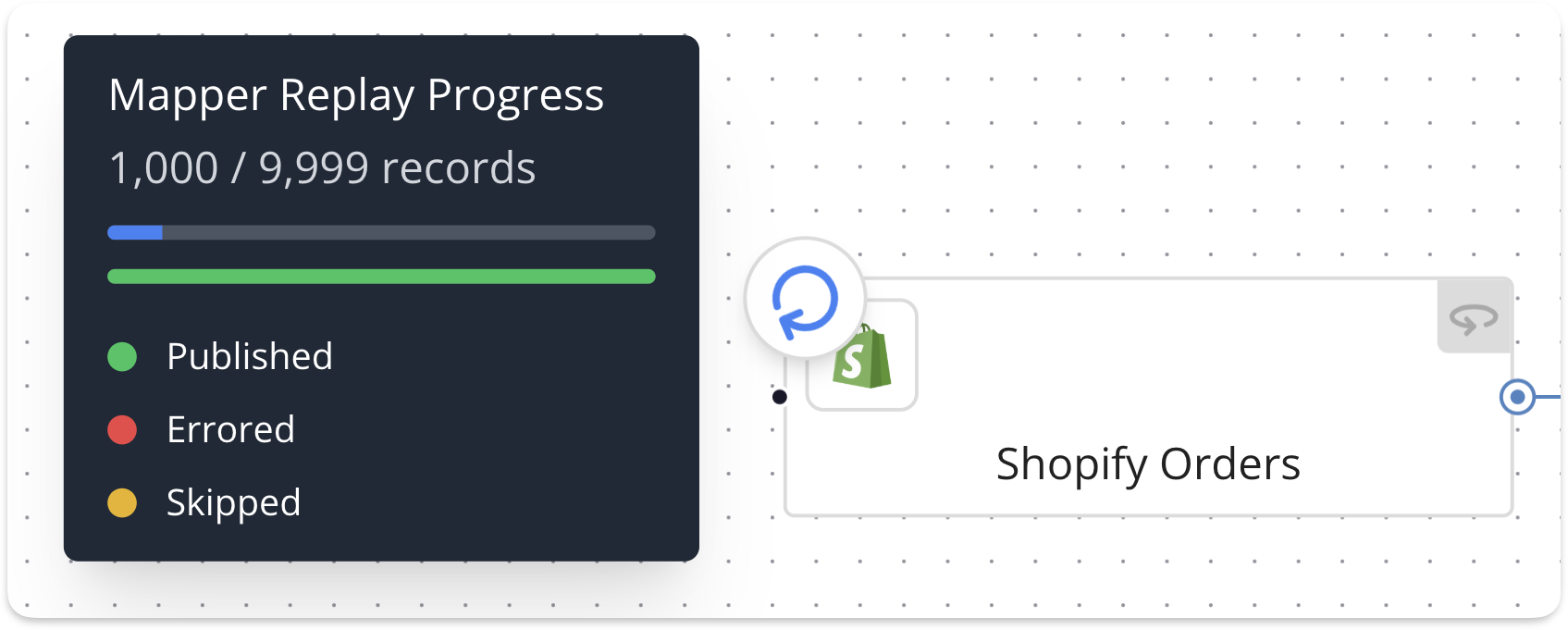
- Published records were transformed successfully and sent to the destination target
- Errored records triggered a transformation error, these records were not sent to the destination target
- Skipped records were transformed, but filtered out of the export to the destination target because of an output filter. See Creating Output Data in the Mapping Canvas for more information on output filters.
ℹ️ It may take a few minutes for the Mapper Replay to begin and for the retransformed records to land in the destination data warehouse. If you are unsure whether your mapper replay was successful, please submit a ticket so our support team can assist.
ℹ️ When using Mapper Replay Advanced Mode or replaying a source with less than 1,000 records, the Mapper Replay progress tracker may appear then disappear very quickly, as the tracker is not persisted after the completion of a replay. We will persist a permanent log of Mapper Replay jobs in the Reactor UI in a future release.
Here is a demonstration of the Mapper Replay progress tracker: