
Managing Model Inputs in the Mapping Canvas
Mappings · Updated May 30, 2025
Connecting a New Input to a Model
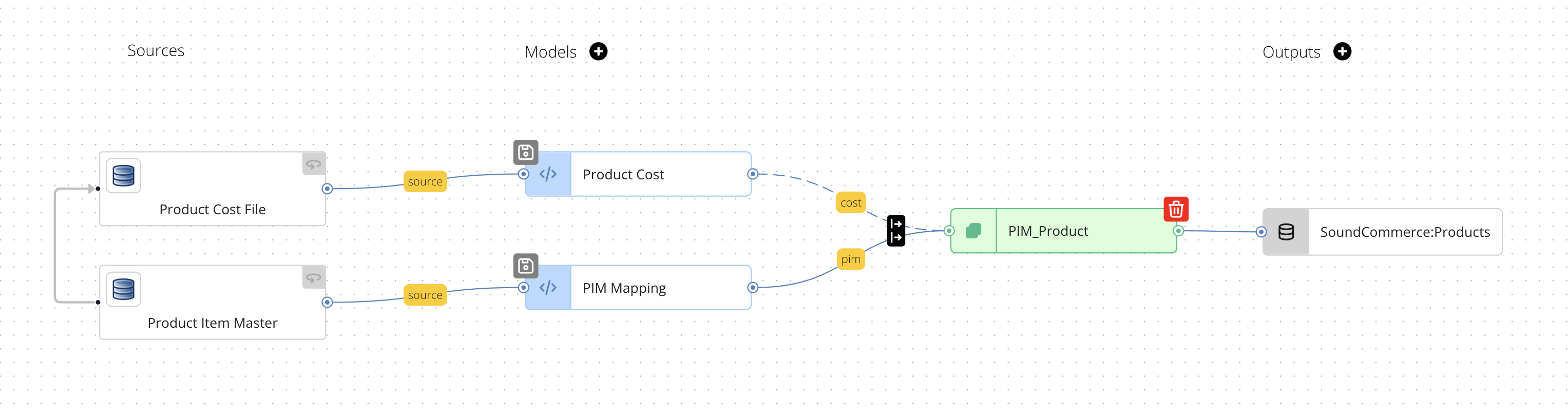
On the Mapping graph itself, users can connect inputs and outputs by clicking the node on the left of a model and drawing a line to the model where the input should output. This is useful when building a model that has many data sources mapped to it, like a digital marketing adspend model:
Once you connect your input to the model, the model configuration is redeployed with the new input included in its configuration.
Edge Configurations
How to Edit an Edge Label
To edit an edge label, simply click on the edge whose label you wish to edit, then edit the text box beneath Label. Once you have completed your edits, select the 💾 icon on the edge to save your changes:
Edge labels are restricted to the following characters:
- Letters (uppercase or lowercase)
- Underscore (_)
- Dollar sign ($)
The Label for all edges connecting a data source to a model is "source" and cannot be edited.
By default, a globally unique text string is populated for any edge connecting a model to another model, but it is recommended to relabel the edge to something more meaningful.
If you update an Edge’s label, you must update the mapping configuration downstream of that edge to reflect the new label. In the example above, the user would need to update the model configuration and replace any references to cost with costfile.
How to Propagate Inputs
The Propagate Inputs setting determines whether all fields from the source or mapping configuration immediately upstream of the Edge are loaded to the mapping configuration or output immediately downstream of the Edge. When Propagate Inputs is enabled, the Edge will show an ↦ icon on the top-right corner of the Edge.
Propagating Inputs is useful when you want to do any of the following:
-
Load all source fields directly to an output (in this case, a landing table in your connected data warehouse)
-
Enhance a Semantic model with additional fields that can be derived from other fields in the model (See How to Create Source-Agnostic Derived Attributes for more information)
-
Combine two or more model configurations into a single model
Defining an Input’s Type
The Input Type setting determines whether new or updated records in the upstream mapping configuration will result in a new output in an immediately downstream mapping configuration. There are three Input Type options:
-
Primary: Inputs with this selection are primary inputs, and any new messages originating from the source upstream of this input will result in a new output downstream
-
Complementary, Trigger: Inputs with this selection are complementary inputs, and any new messages originating from the source upstream of this input will result in a new output downstream
-
Complementary, No Trigger: Inputs with this selection are complementary inputs, and any new messages originating from the source upstream of this input will not result in a new output downstream
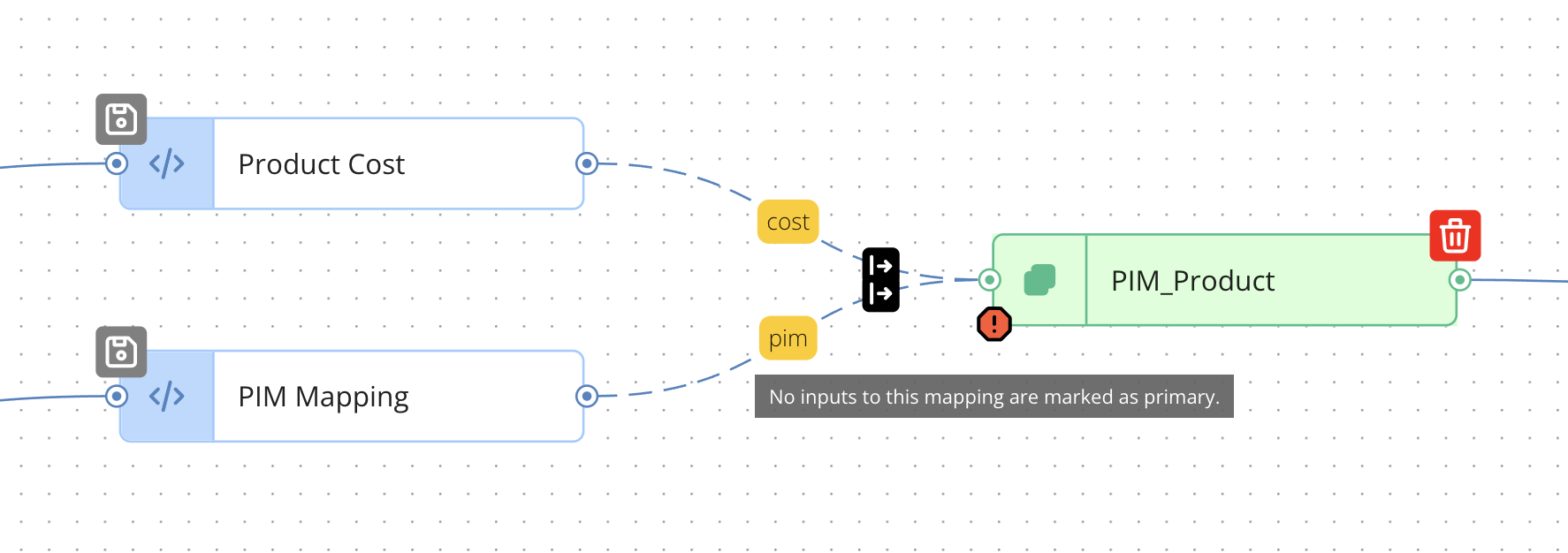
When an input is Primary, a solid line connects the input to its immediate downstream output. When an input is Complementary, a dotted line connects the input to its immediate downstream output.
When a mapping configuration does not have any Primary inputs feeding it, a warning icon will be displayed on the mapping configuration:
Primary vs. Complementary Inputs
In most cases, an input should be configured to be Primary. The Source Links tool uses Complementary inputs when two sources are linked. If a data source is not linked to other data sources, then the Input Type for any mapping configuration(s) downstream from that source should be set to Primary.
ℹ️ For more information on Source Links, see How To Link Sources in Reactor
When two sources are linked, at least one source should be considered Primary throughout the Reactor data pipeline. For instance, when linking an order source (like Shopify) to a COGS source, the order source is primary, while the COGS source is complementary. This is because the COGS source does not have enough data to construct a “complete” order record (presumably, the COGS source does not include the order’s created_at timestamp, customer information, and other key order attributes, while the order source does).
When to Trigger Updates for Complementary Inputs
When deciding whether a complementary source should trigger a new output downstream, determine whether a new message from that source should result in new linked data output to the destination. In the Order + COGS link example, when a new COGS record is ingested for an order, that update should trigger a new output, because several order fields will have new values as a result:
-
line_items.sku_cogs
-
line_items.line_item_cogs
-
total_cogs
It is rare for a complementary input to not trigger an updated output. If you are unsure as to whether a complementary input should or should not trigger an update, reach out to our Support team for assistance.
How to Remove an Input from a Model
If an input should not contribute to a model any longer, you can disconnect the input from a model by selecting the input's edge configuration, then selecting the wastebasket icon in the edge configuration screen: