
Manage Users and Permissions
Getting Started · Updated July 24, 2025
If you have administrator privileges to the Reactor platform, you can provision accounts for your organization. Administrators can choose from pre-defined roles or create custom roles to set access levels for platform features and dashboards when establishing a new user account.
Add a new user
To give someone in your organization access to the Reactor platform, add their name and email address to the Users page.
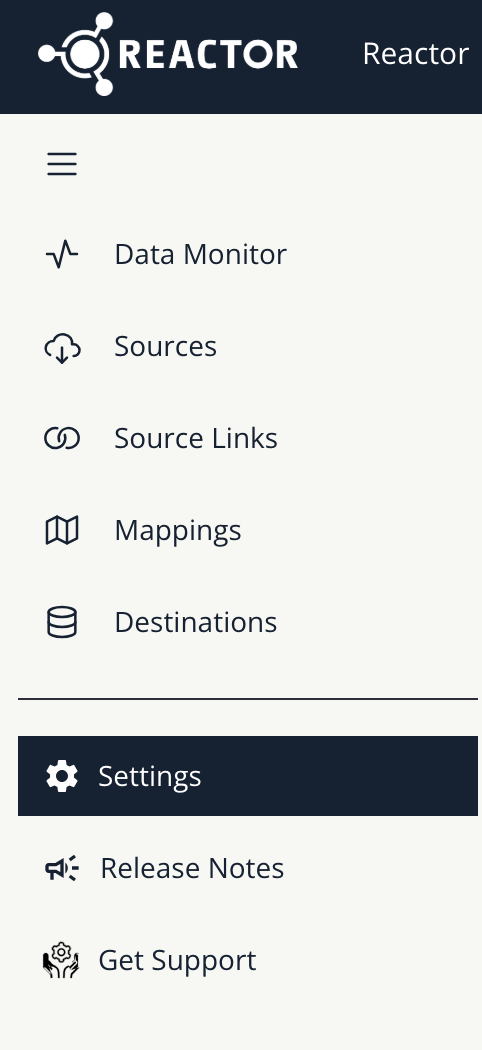
- From the left navigation pane, select Settings.
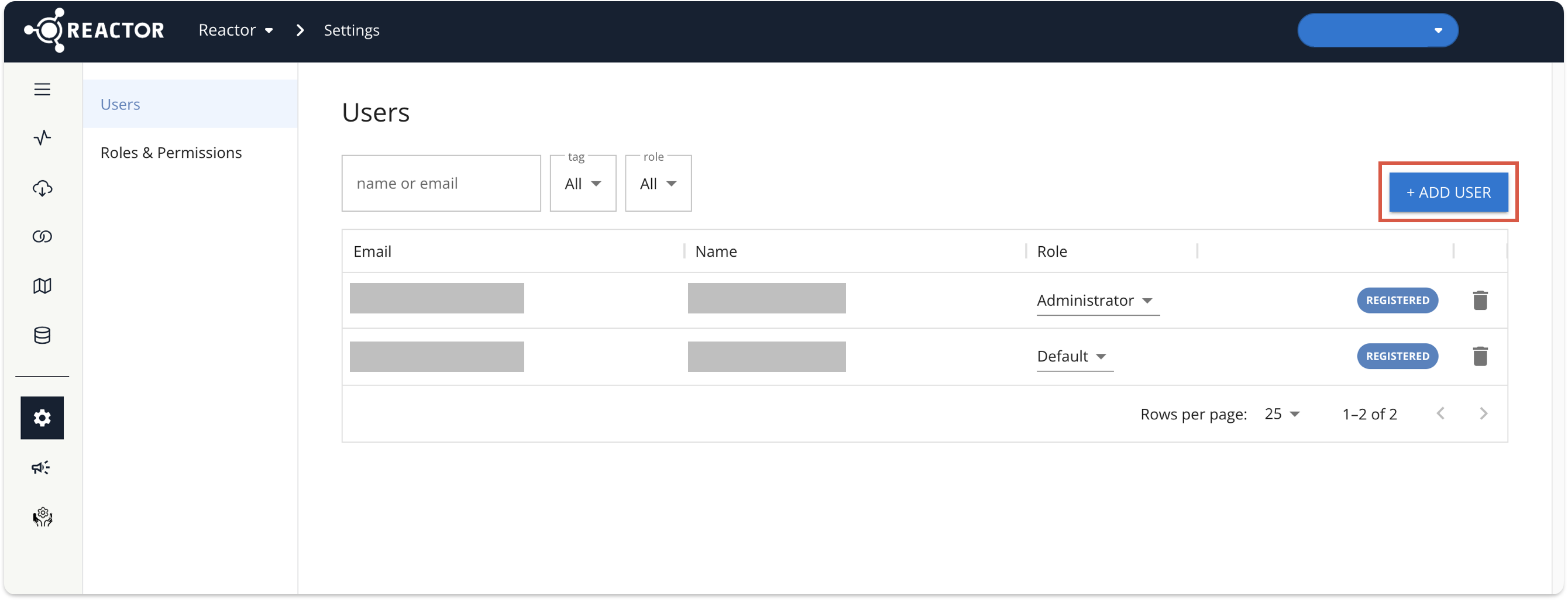
- This will take you to the Users page. Select the + Add User.
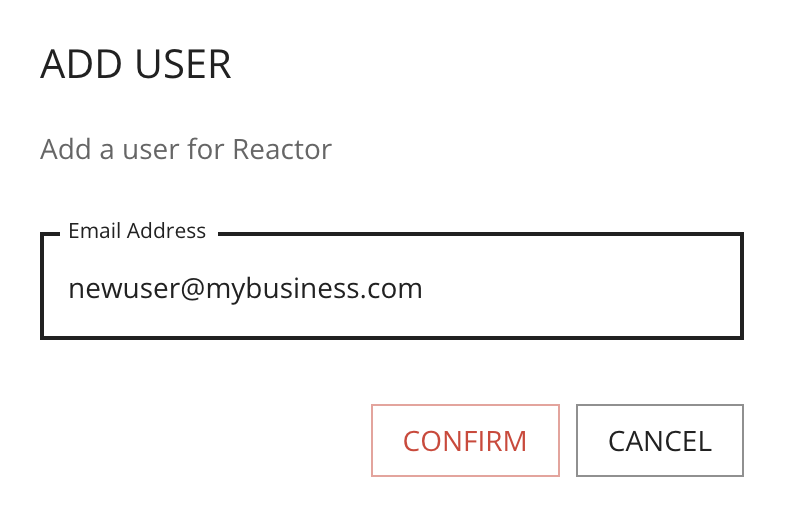
- A popup will appear. Enter the email address of the user you wish to add, then select Confirm to add the user.
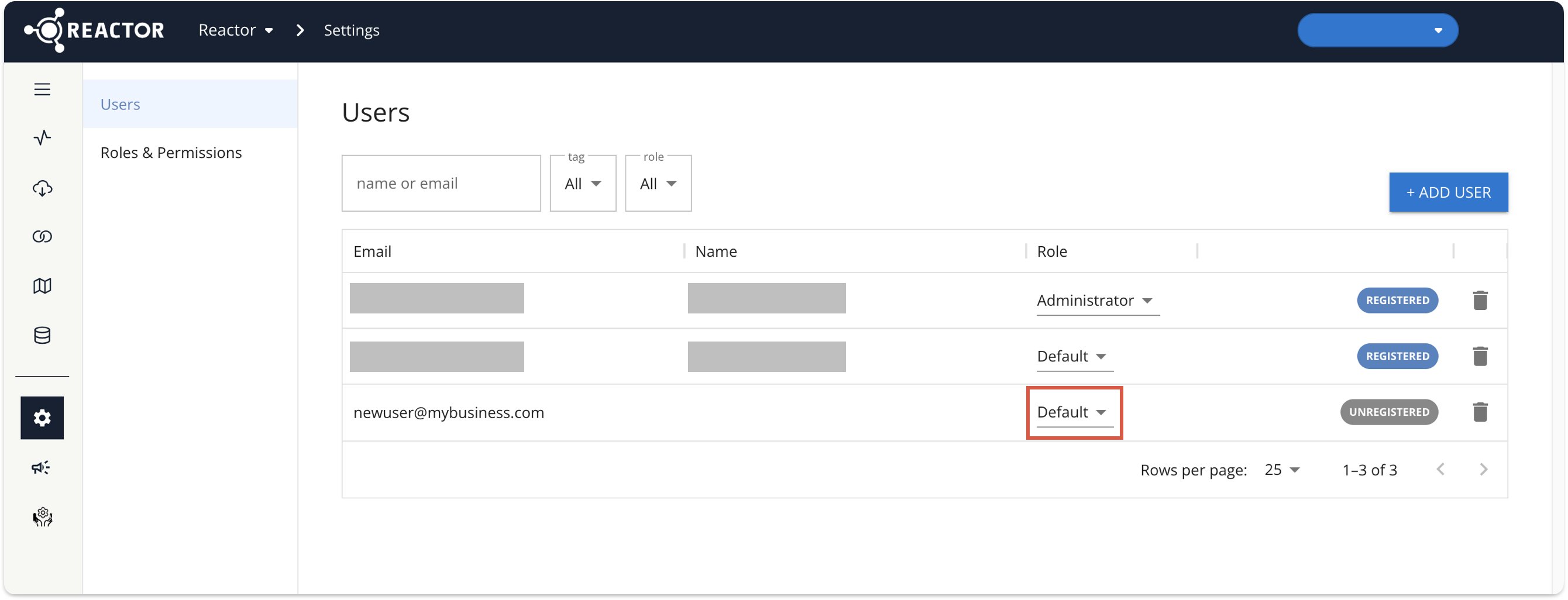
- The user will appear in the Users table. By default, the Default role is provisioned for new users. To change the user's role, simply select the dropdown menu, then select the desired role. From the Role dropdown menu, select Default. To give the user full access to the Reactor platform (including adding and configuring new users), select Administrator.
ℹ️ See Customize Permissions through Roles for more information on user roles and permissions.
Remove a User
To remove a user's access to Reactor:
- Select the trash bin icon in that user's row:
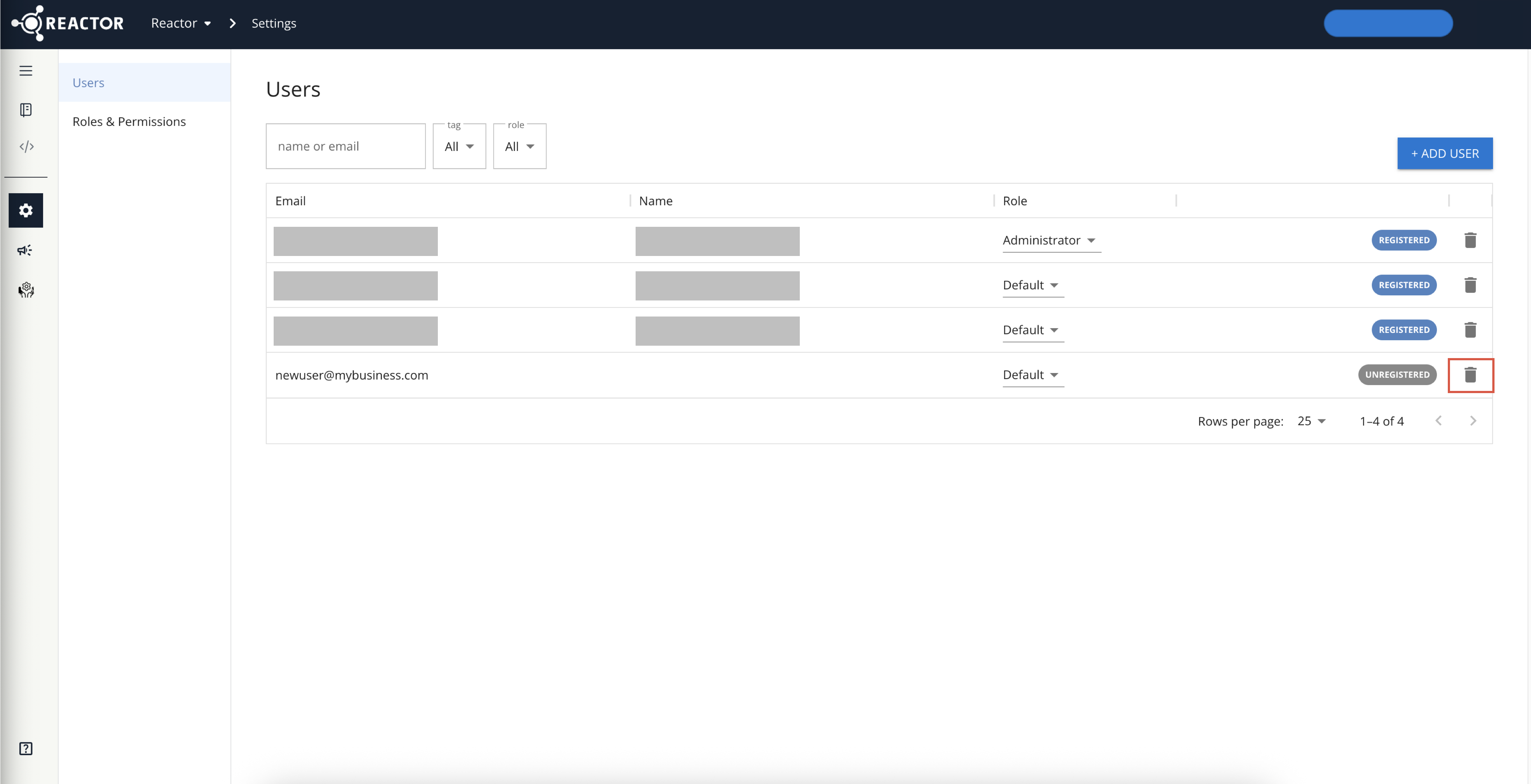
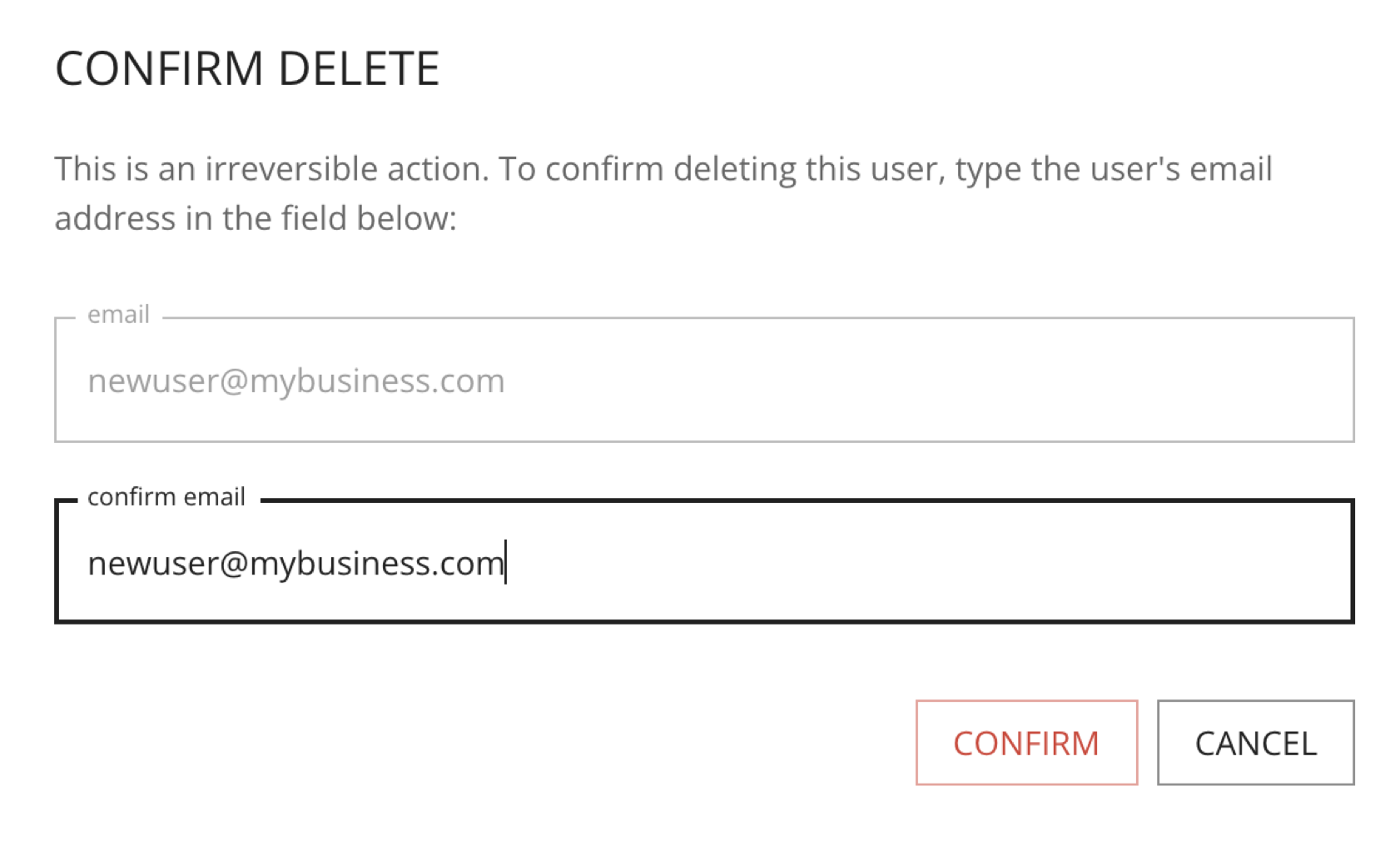
- You will be prompted to re-enter the user's email address to confirm their deletion. Enter the email address in the confirm email box, then select the Confirm button:
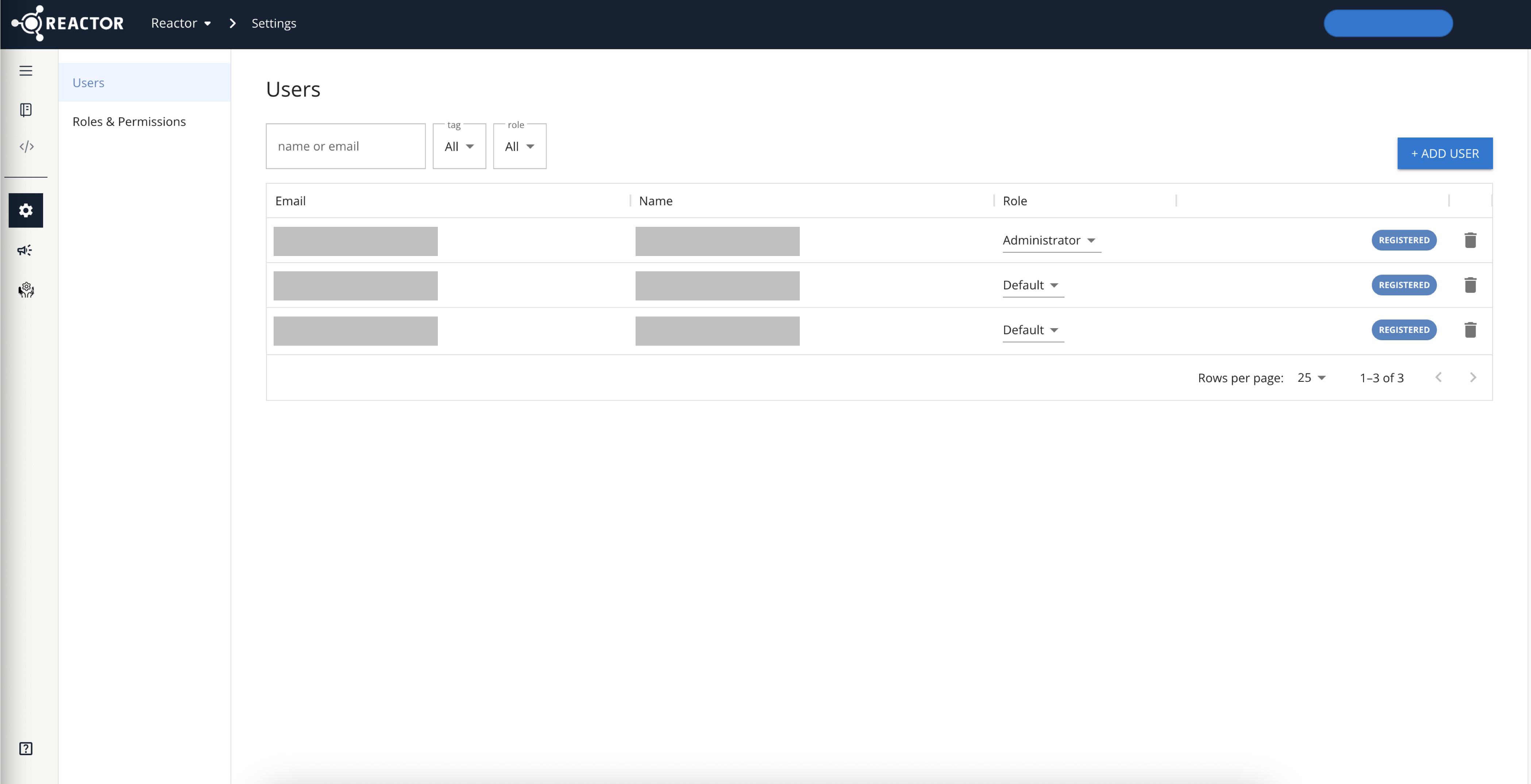
- The Confirm Delete dialog will close, and the user will be removed from the list of users:
Customize Permissions Through Roles
You'll need to create a new, customized role to add permissions beyond those in the Default and Administrator roles.
- On the Settings page, select Roles & Permissions.
- Below the Administrator and Default roles, select the plus sign (+) and in the text box, enter a name for the role
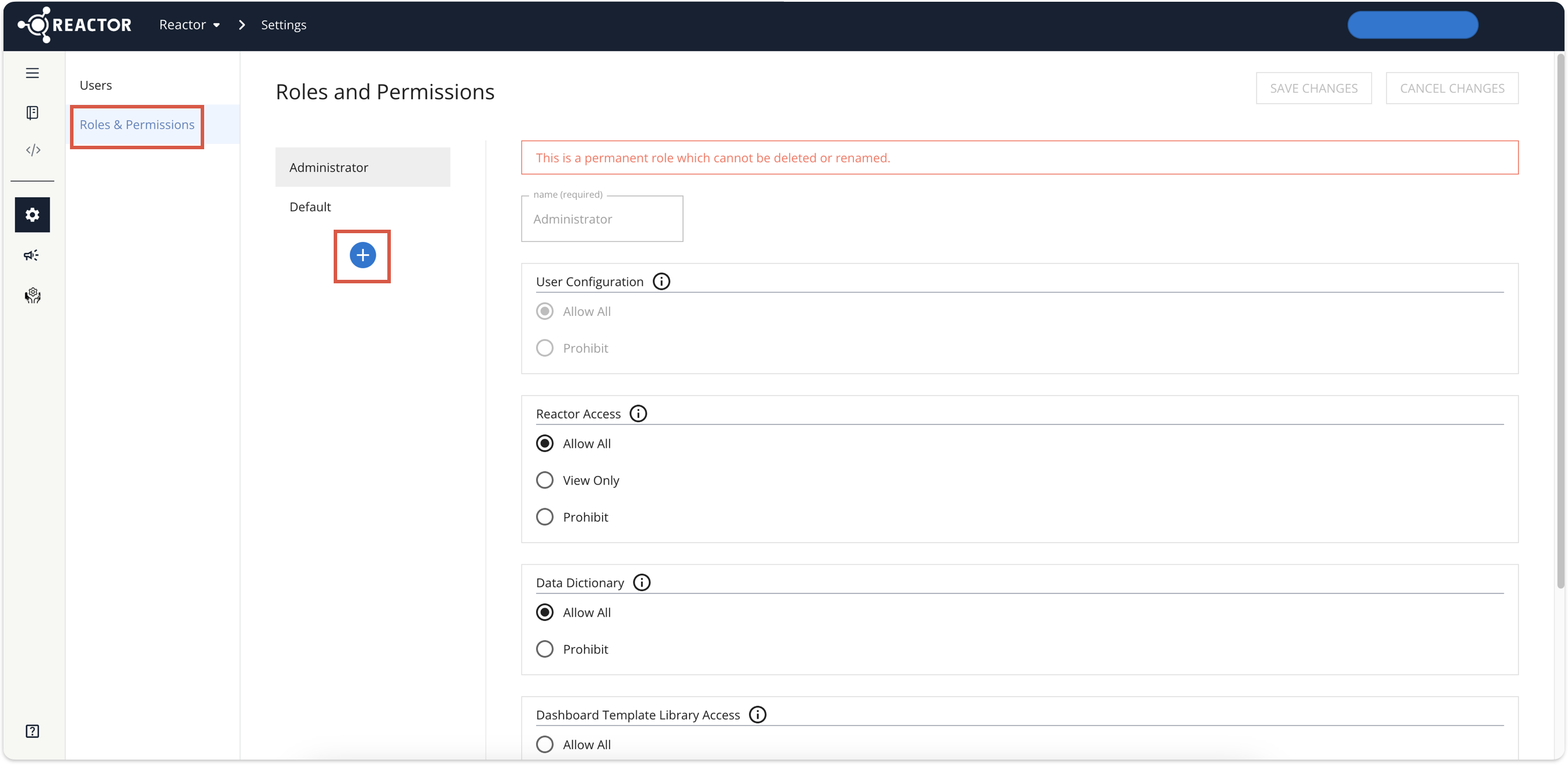
- For each listed feature, specify one of the following radio buttons:
- Allow all lets the user view and interact with the feature
- View only allows the user to view the feature, but not interact with it
- Prohibit removes the feature from the user's view
- When you're done, select Save changes