
Connect Your Email to a Google Account to Login
Getting Started · Updated July 1, 2025
When you onboard with Reactor, you will need to connect your email address to a Google account so you can log in to Reactor using Google Authentication. If your email address is not already associated with a Google account, please follow the steps below.
ℹ️ Does your organization use a different provider for authentication? Please submit a request to our support team to inquire about adding support for your provider to our product roadmap.
Create a New Google Account Associated With Your Work Email
- Go to google.com. If you are currently signed into any Google or Gmail accounts, sign out by selecting your profile picture in the upper-right corner and choosing "Sign out."
- Go to Create your Google account.
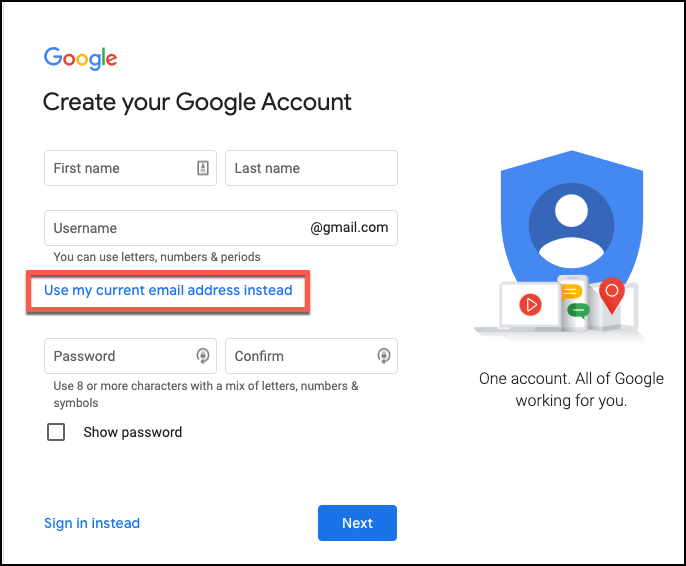
- Enter your first name, last name, and work email address.
- Select the option to "Use my current email address instead" (or similar wording) and enter your work email.
- Create a new password for the Google-linked account.
Once your Google account is created and associated with your work email, you can then navigate to the Reactor login page at app.reactordata.com. From there, simply select the "Sign in with Google" (or "Continue with Google") option to log in.
Enhance Your Security with Google's Multi-Factor Authentication (MFA)
For an added layer of security, we strongly encourage you to enable Multi-Factor Authentication (MFA) on your Google account. This provides extra protection against unauthorized access.
You can learn how to set up Google's 2-Step Verification (their MFA feature) by visiting Google's official help documentation here: Google's Help for 2-Step Verification.