
Logging In To Reactor
Getting Started · Updated July 1, 2025
To ensure the highest level of security for your data, Reactor leverages Google's robust authentication system. This means that all users must log in to Reactor using a Google account. Don't worry if your work email isn't already a Google account – the process is straightforward!
Step 1: Ensure Your Work Email is Linked to a Google Account
Before you can log in to Reactor, your work email address needs to be associated with a Google account. If it's not already, or if you're unsure, please refer to our detailed guide here: Connect Your Email to a Google Account to Login. That article will walk you through the steps to create a new Google account using your existing work email.
Step 2: Log In to Reactor
Once your work email is successfully linked to a Google account, you're ready to log in!
- Navigate to the Reactor login page: app.reactordata.com
- On the login page, you will see a prominent button that says "Sign in with Google" (or "Continue with Google"). Click this button.
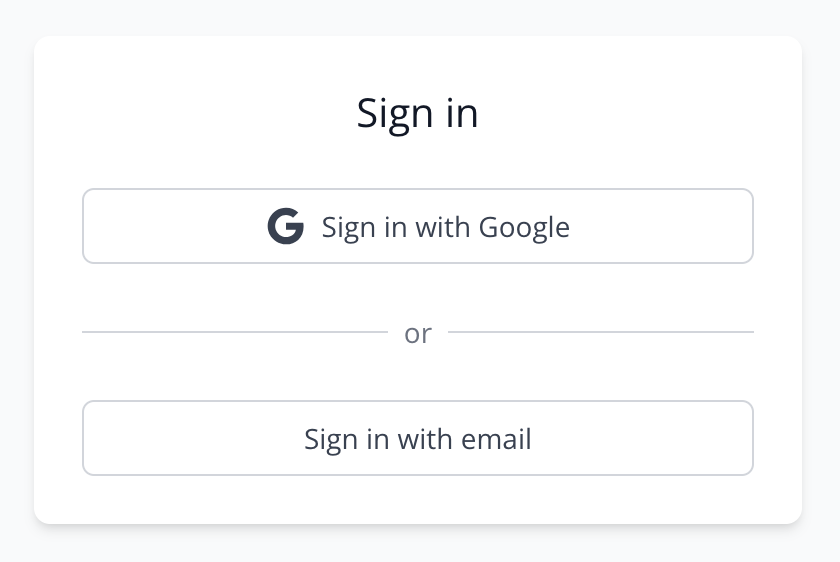
- You will be redirected to a Google authentication screen. Select the Google account that is associated with your work email address.
- Follow any on-screen prompts from Google to complete the authentication process. If you have Multi-Factor Authentication (MFA) enabled on your Google account (which we highly recommend for enhanced security!), you will be prompted to complete that step as well.
That's it! You should now be successfully logged in to your Reactor account.
Enhance Your Account Security
For optimal security, we strongly recommend enabling Multi-Factor Authentication (MFA), also known as 2-Step Verification, on your Google account. This adds an extra layer of protection beyond just your password.
- Learn how to set up Google's 2-Step Verification (external link)
If you encounter any issues during the login process, please don't hesitate to reach out to our support team for assistance.