
Editing or Updating a Data Source
Sources · Updated August 12, 2025
Introduction
This document outlines the procedures for editing and updating data source connectors within the Reactor platform. It addresses common scenarios that necessitate modifications to connector settings and provides step-by-step instructions for implementing those changes. Additionally, it covers how to pause, unpause, and delete source connectors, emphasizing best practices and potential consequences.
Why Edit or Update a Data Source?
There are several common scenarios where you might need to modify a source connector's settings. These include:
- Credential Changes: If the credentials for the data source itself (such as username, password, API key, etc.) are changed, you must update the corresponding connector settings in Reactor to maintain a valid connection.
- Schedule Adjustments: If you need to change the frequency or timing of data collection from the source, you'll need to update the connector's data collection schedule.
- Parameter Modifications: In some cases, you may need to adjust specific connector parameters to refine data retrieval or adapt to changes in the source system.
Important Note on Deleting Connectors:
While deleting a source connector is possible, it is generally discouraged. Deletion can have significant and potentially irreversible consequences for your data pipelines. Before deleting a connector, it is strongly recommended that you:
- Pause the connector: This will temporarily halt data collection without permanently removing the connector and its configuration.
- Submit a support ticket: Contact Reactor Data support to discuss your situation and confirm whether deleting the connector is the appropriate course of action. They can provide guidance and help you avoid unintended data loss or disruption.
How to Edit a Source Connector's Settings
Follow these steps to modify the settings of an existing source connector:
-
Navigate to the Sources Panel:
- In the Reactor UI, use the left sidebar to select "Sources."
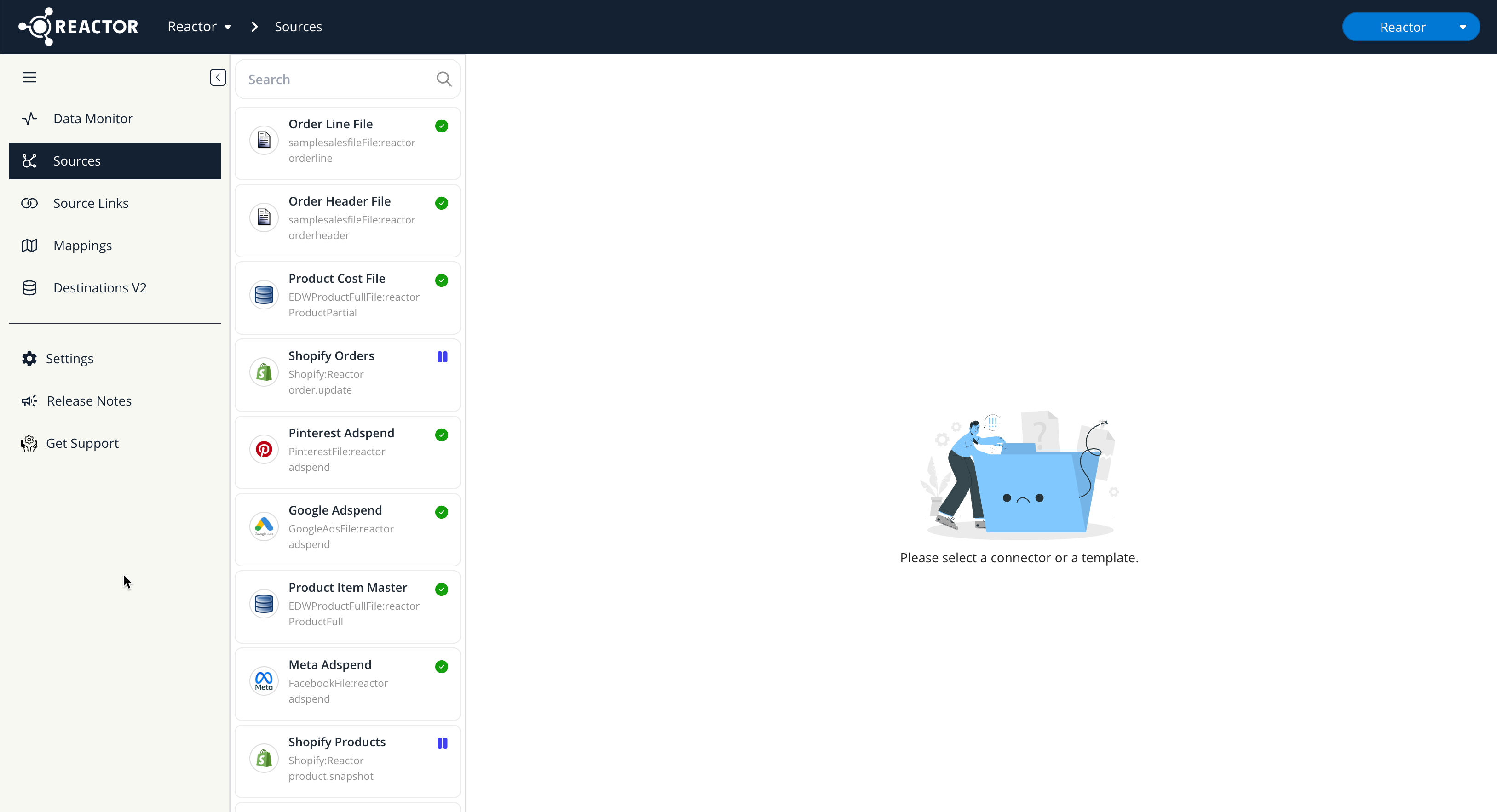
- In the Reactor UI, use the left sidebar to select "Sources."
-
Select the Source Connector:
- In the left sidebar, click on the tile representing the connector you wish to edit.
- If you have multiple sources, use the Search dialog in the sidebar to filter and find the specific source.
-
Enable Edit Mode:
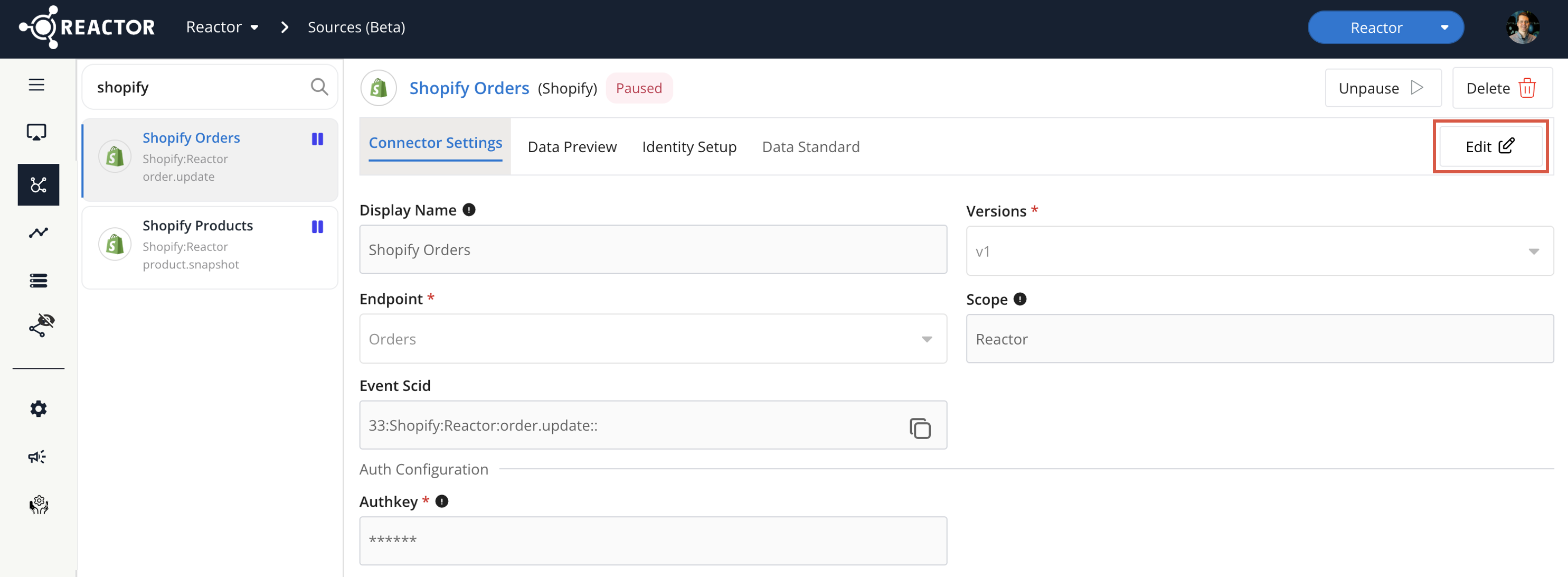
- Once you've selected the source tile, the source's current settings will be displayed in a read-only format.
- To make changes, click the "Edit" button, typically located at the top-right corner of the configuration window. This action will enable Edit mode.
-
Modify Connector Parameters:
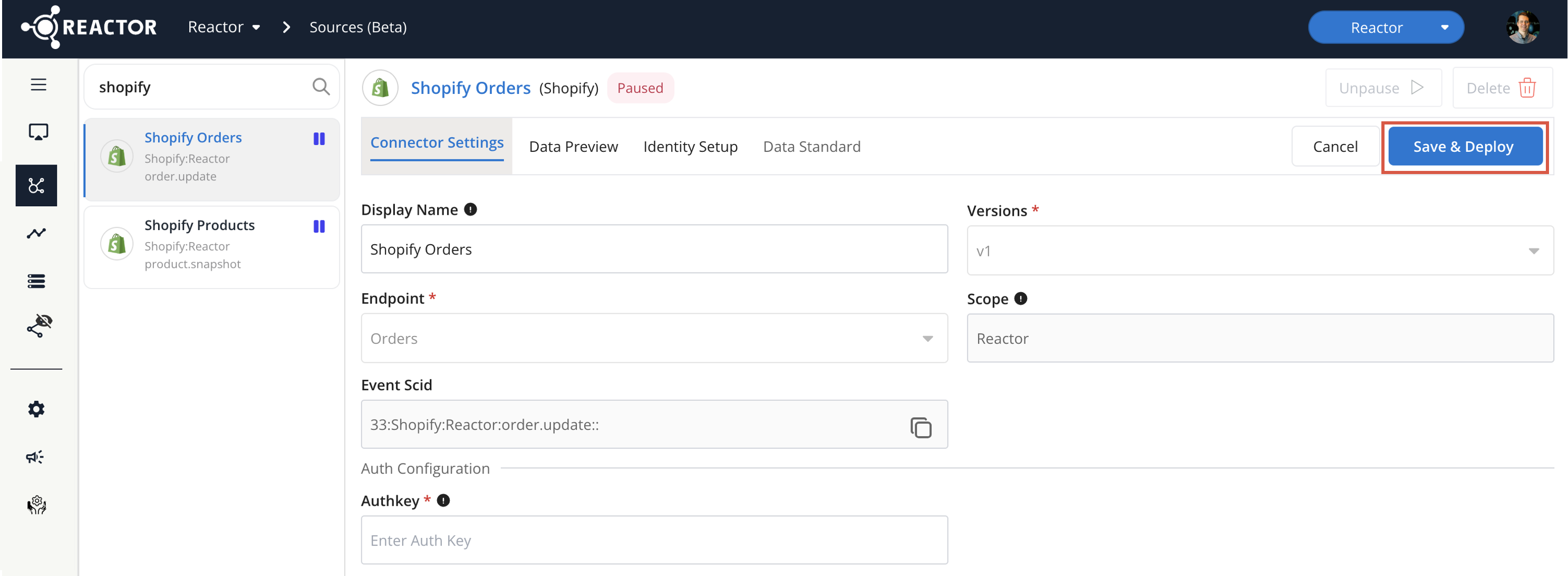
- After selecting "Edit," the configuration will switch to Edit mode, allowing you to modify various parameters.
-
Important Restrictions: You generally cannot change the following core connector attributes:
- Version
- Endpoint
- Scope
- Save and Deploy Changes:
- Once you have completed your edits, click the "Save & Deploy" button. This action will save your changes and apply them to the connector, potentially triggering a redeployment of the connector with the updated settings.
How to Pause, Unpause, or Delete a Source Connector
These actions allow you to control the data collection activity of a source connector:
-
Navigate to the Sources Panel:
- In the Reactor UI, use the left sidebar to select "Sources."
- In the Reactor UI, use the left sidebar to select "Sources."
-
Select the Source Connector:
- In the left sidebar, click on the tile representing the connector you want to manage.
- Use the Search dialog to filter the list if needed.
-
View Connector Status and Options:
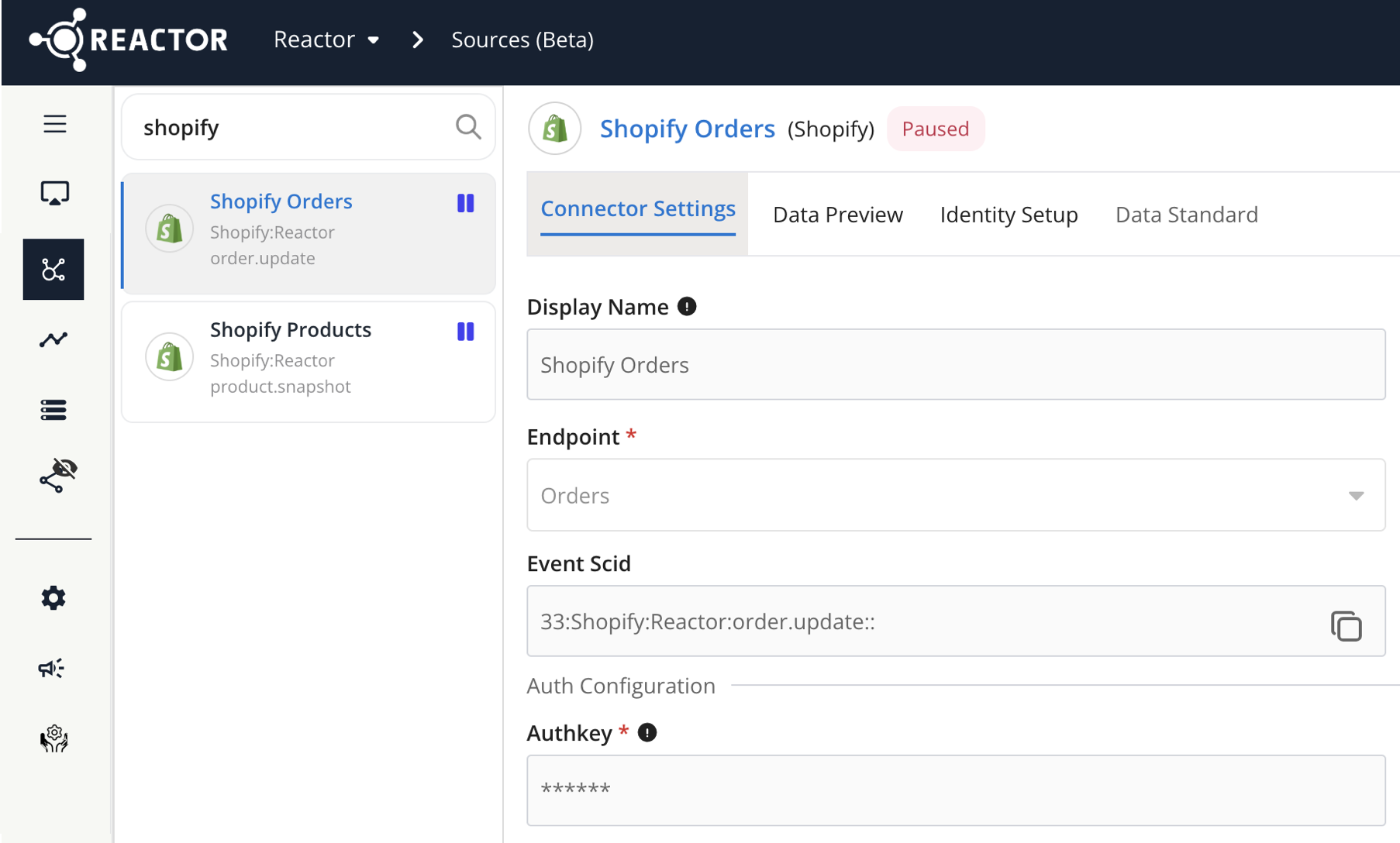
- After selecting the source tile, the source's configuration will be displayed in a read-only format.
- The available options (Pause, Unpause, Delete) will vary depending on the connector's current status.
-
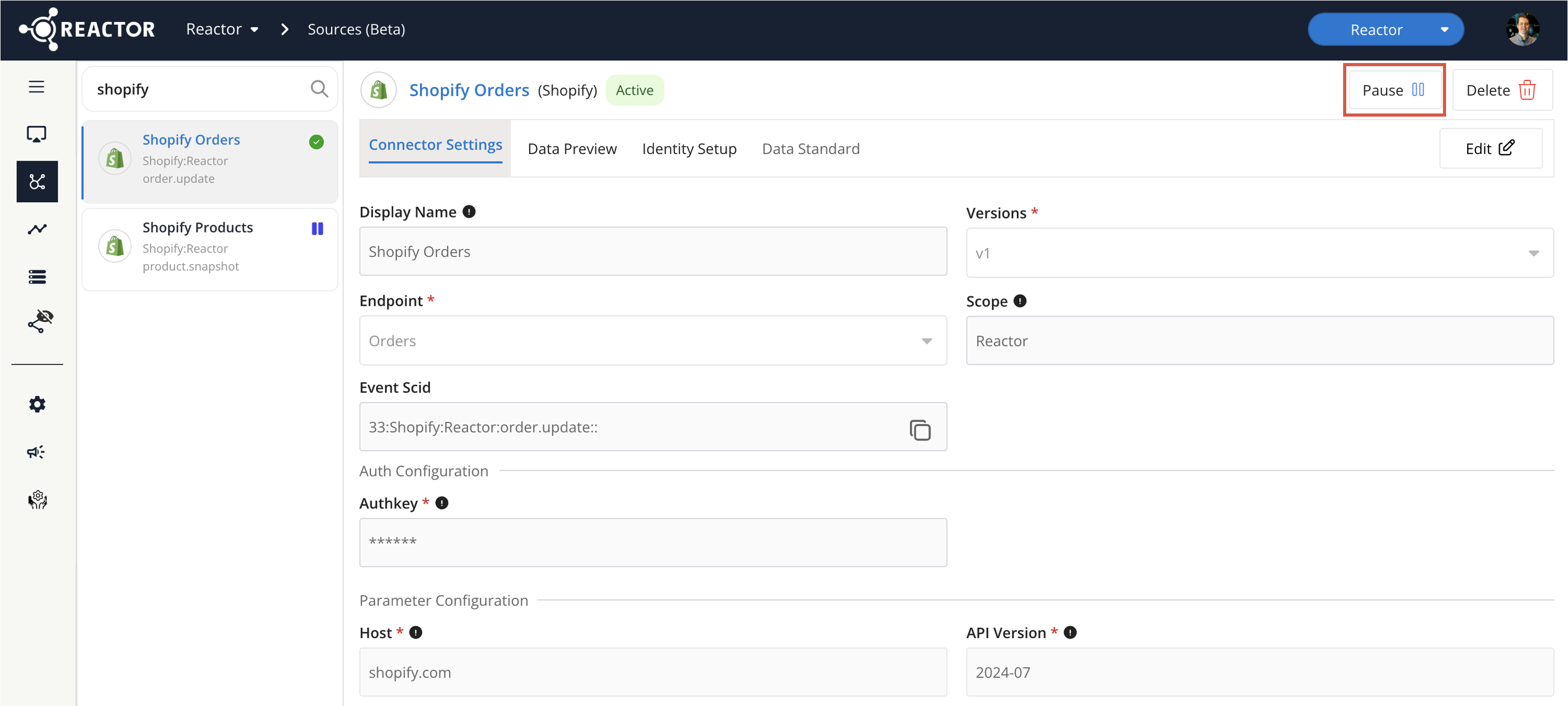
Pause a Connector:
- If the connector is currently active and collecting data, a "Pause" button will be displayed above the source's configuration.
- Click the "Pause" button to stop data collection from the source immediately.
-
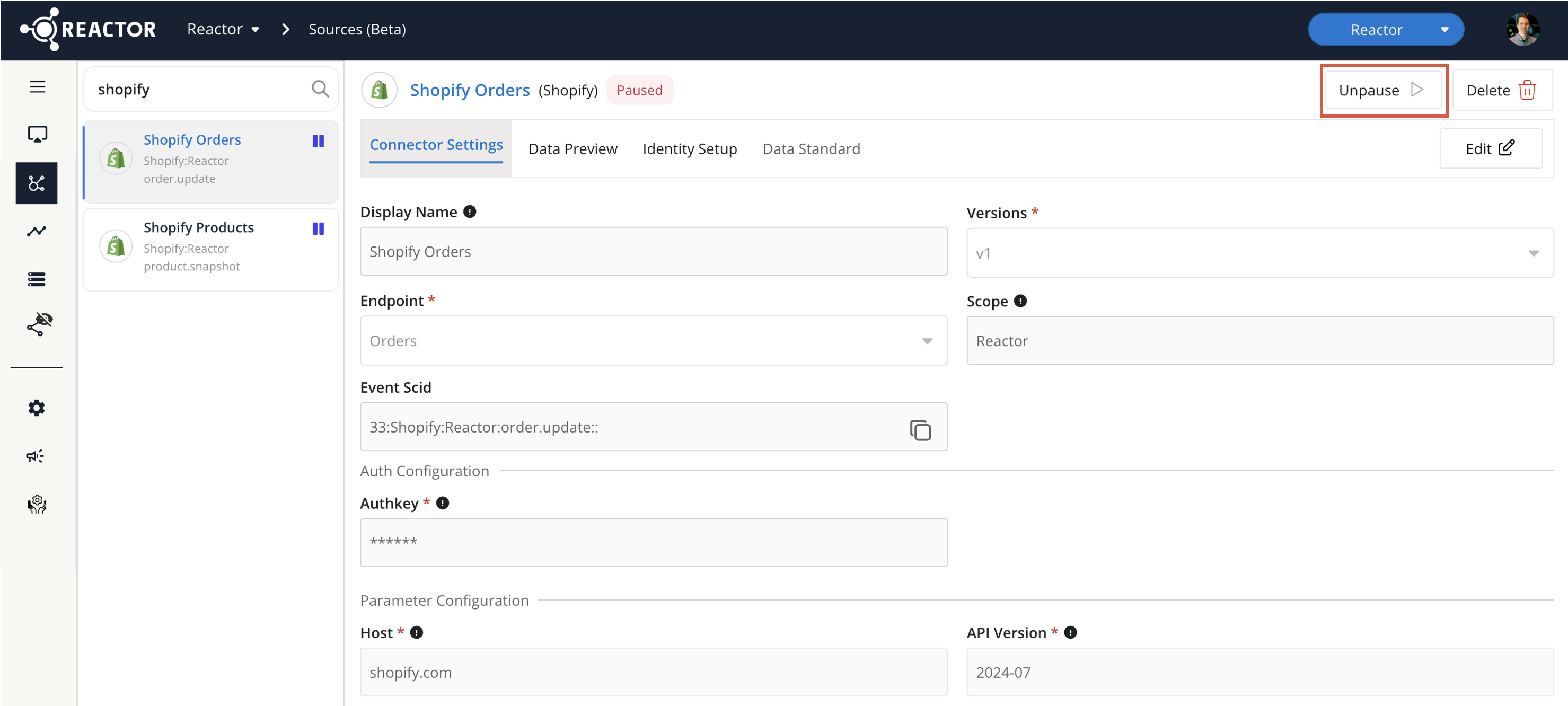
Unpause a Connector:
- If the connector is currently paused, an "Unpause" button will be displayed.
- Click the "Unpause" button to resume data collection according to the connector's defined schedule.
-
Delete a Connector:
- A "Delete" button will also be present above the source's configuration.
- Click the "Delete" button to initiate the connector deletion process.
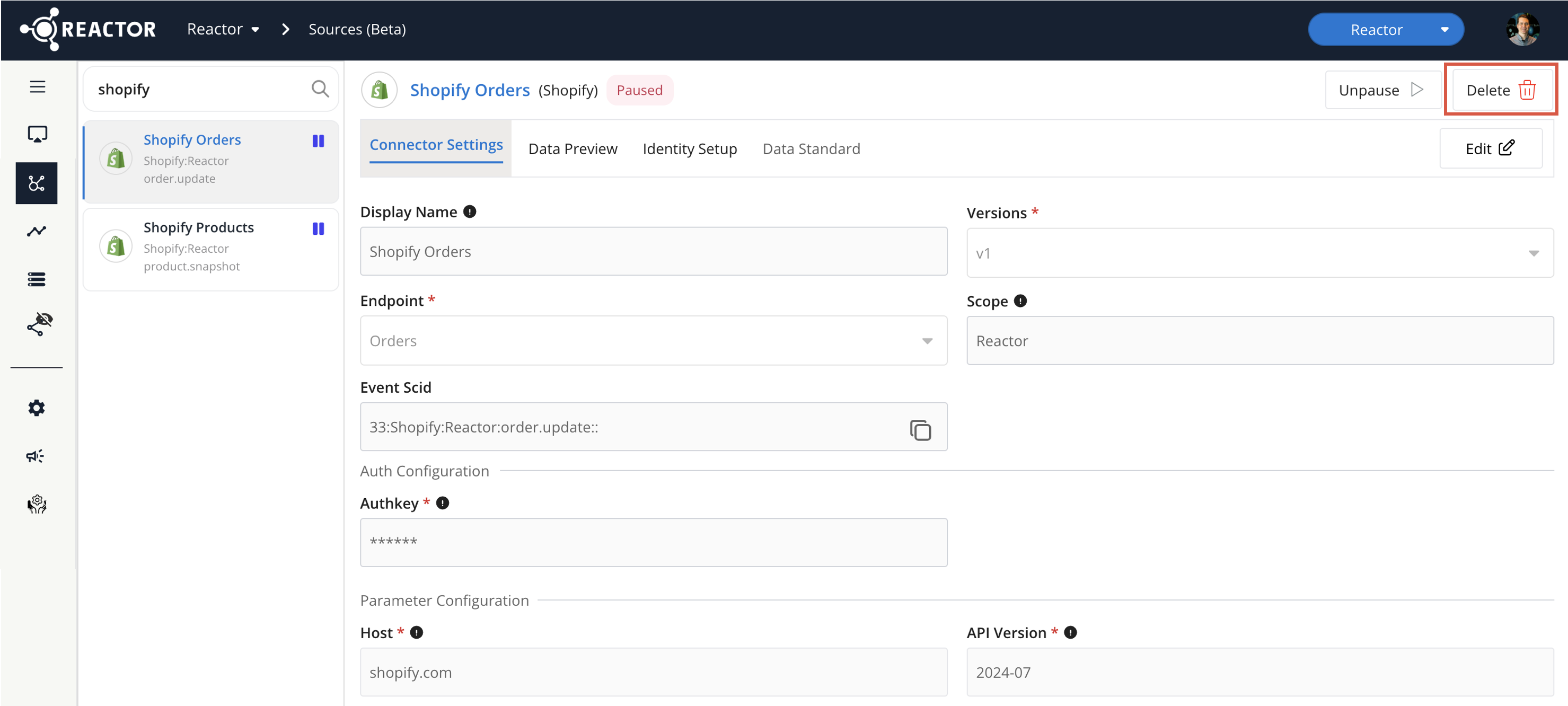
⚠️WARNING: Deleting a connector is generally irreversible. Exercise extreme caution. It is almost always preferable to pause a connector and contact support before considering deletion.